
How the Reports tabs work: start from the Summary, pick a period and a comparison, read each figure, and export it as a PDF or a CSV file.
On this page
Who can open Reports#
Reports appears in the menu for Owner and Admin only. A coach or a front desk account does not see it, and a non-manager who reaches the page anyway is sent back to the dashboard.
An Admin whose View revenue & reports capability was removed still opens Reports, but the money figures are left out.
Five tabs, and the activity log#
Path: Reports.
Reports has one tab per question: Summary, Money, Attendance, Members and Coaches. The words follow your gym's vocabulary, for example Practitioners instead of Coaches. Reports opens on Summary. Money shows when you can see revenue, when the shop is on or when your plan includes reports.
A last tab, Activity log, lists who changed what. It is shown to roles that have the Gym settings capability, and it follows the period you picked. Path: Reports › Activity log.
Activity log groups the lines by day, with the time on each line. Search the log and the Type and User menus narrow it down, and Export CSV downloads exactly what is on screen, with the same filters and the same hidden amounts.
Until there is at least one member, booking or payment, Reports says Nothing to report yet. It fills in on its own as soon as you add members, collect a payment or check someone in.
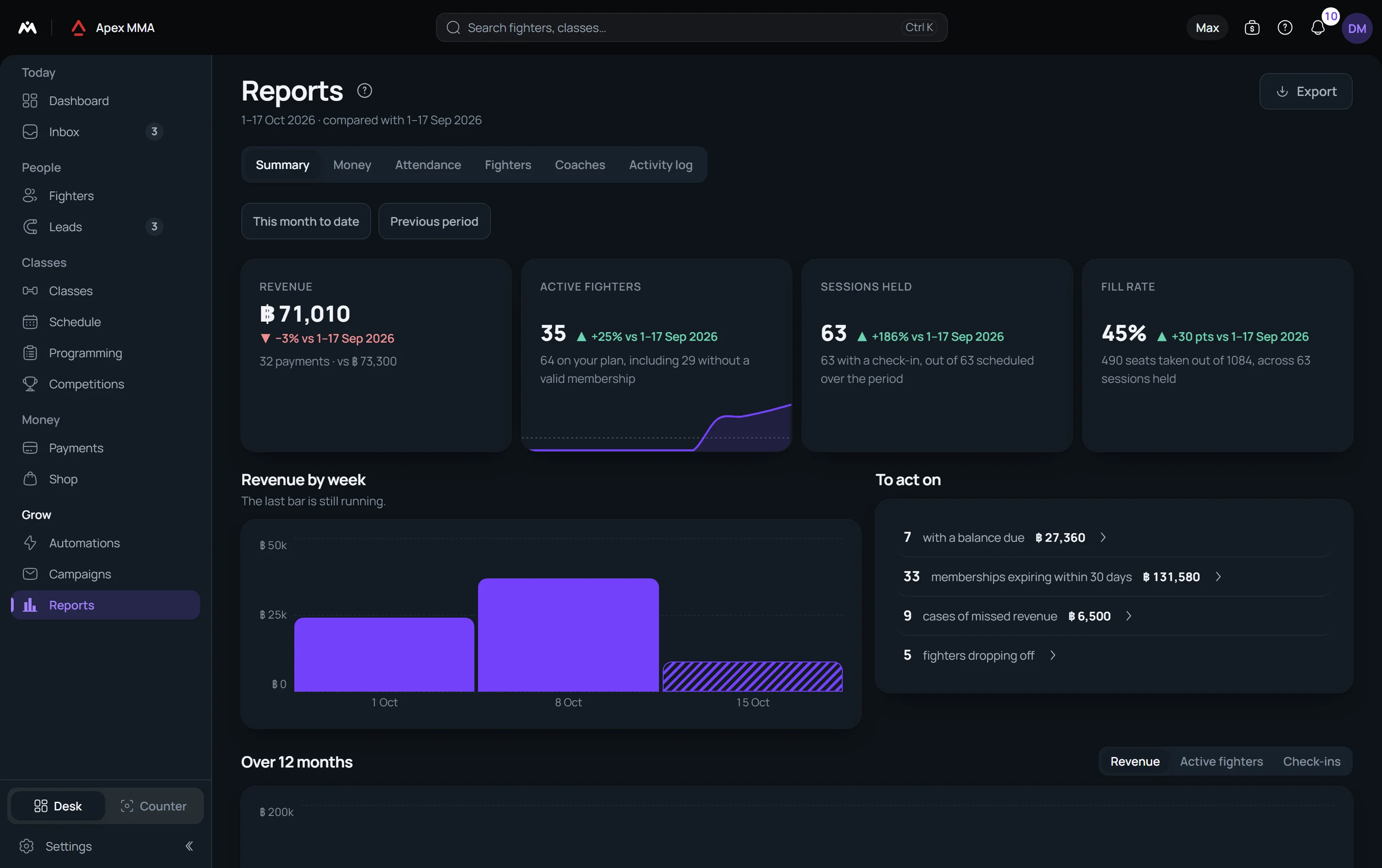
Summary: the first page#
Path: Reports › Summary.
The top of the Summary has four cards taken from the other tabs, with their change and their curve: Revenue, Active members, Sessions held (Appointments on an appointment business) and Fill rate (Staff utilization). Revenue is left out when you cannot see the money figures.
Revenue by week draws the revenue of the period week by week, or month by month on a long period, and the last bar is marked as still running. To act on lists what needs a gesture, and each line opens its list: the people with a balance due, the memberships expiring within 30 days, the cases of missed revenue and the members dropping off. A line at zero is not shown, and when none is left the block says Nothing needs your attention.
Over 12 months switches between Revenue, Active members and Check-ins (Appointments). The line on each bar is the same month a year earlier. The series starts at the month your studio has its first data. Below it, a heat map shows when your members come, by day of the week and hour of the day, and names the busiest slot.
Pick a period, everything follows it
Path: Reports › Period.
The Period menu offers Today, Yesterday, Last 7 days, Last 30 days, This month to date, Last month, This quarter to date, Last quarter, This year to date, All time, A specific month and Custom period. Reports opens on This month to date. A specific month adds a Month menu. Custom period adds From and To dates, neither later than today, and nothing is calculated until both are valid.
Compare with offers Previous period or Same period last year. It only appears when the two choices would give different periods. The line under the title says which period you are reading and what it is compared with.
Every figure, block and export of the chapter follows these two choices. If the comparison period starts before your first data, the figure says No data instead of showing a misleading change.
What the Money figures count
Path: Reports › Money.
Revenue adds up the payments dated inside the period whose status is paid, and subtracts refunds. The line under it, for example 18 payments in this period, opens exactly those payments in Payments.
Recurring revenue is the monthly value of the memberships running on the last day of the period. Each price is spread over the length of the membership in months, at least one month, credit packs are left out, and a membership with no price is counted apart: the card says how many. It is compared with the same figure on the last day of the comparison period.
Unpaid is the money still owed. It shows the amount and, below it, how many people owe it, with a link to that list. Without the View revenue & reports capability the card shows the number of people instead of the amount.
Revenue by membership and by discipline
Path: Reports › Money.
Under the figures, two charts split the same revenue: by the membership each payment paid, and by the member's discipline. Eight lines at most, biggest first, and the rest are in the export. A payment that is not attached to any membership appears on a separate line, Not linked to a membership, with a link to those payments.
These two blocks need the View revenue & reports capability.
Net cash, the shop, gift cards and the sales ledger
Path: Reports › Money.
Under the splits, By payment method opens one line per payment method with what came in, what went out and the net, and shows Net cash on the closed line. Net cash is cash in minus cash out for the period. It leaves out your opening float and earlier days, so it is not a cash balance. Out counts refunds and expenses paid with that method.
Shop, just below, shows the shop's revenue, cost of goods, gross margin, expenses and net profit for the period. Gross margin and net profit stay unavailable while cost prices are missing, and the line says how many.
A line shows the gift cards sold and not yet used, when there are any. Download the sales ledger gives your complete sales ledger as a CSV file for your accountant, for the period on screen.
Pre-sold closes the chapter. It lists the memberships sold whose start is in the future, or that start on first visit and have not been used.
Attendance: how full your classes are
Path: Reports › Attendance.
Fill rate is the seats taken out of the seats offered, across the sessions held. Sessions held counts the sessions that have started, and the line under it says how many of the scheduled sessions had a check-in.
Attendance, day by day draws the check-ins as a curve with its average, and today as a dotted segment because the day is not over. The curve covers at least the last 14 days, and its subtitle says so when it widens the period. Fill rate by class lists each class with its seats taken out of seats offered, and counts how many are under 50% over the period.
On an appointment business this chapter shows Appointments, Staff utilization, No-shows and Late cancellations instead, with the hours booked out of the hours available. Open hours that have nobody assigned are not counted in utilization, and the card tells you how many hours they are.
Members: who is active, who is leaving
Path: Reports › Members.
Active members counts the members with a valid membership on the last day of the period. Leads shows how many of the leads that arrived in the period signed up, and stays a dash when no lead arrived.
With a plan that includes reports, Expiring within 30 days lists the memberships that end soon, Joined and left counts who joined and lists the members whose memberships ended in the period, and Waivers counts the members without a signed waiver. Each block has a link, for example See the 5, that opens exactly that list in Members.
Retention shows Monthly churn, which is the share of the members active at the end of the month before who are no longer active at the end of the last closed month, and Average membership length. With the View revenue & reports capability it also shows Revenue per member. Each figure reads n/a until there is enough history.
Disciplines splits your members across what you teach. Data to clean lists profiles that may be duplicates, with the same phone or email or the same name written differently. Nothing is merged for you.
Three more reports close the chapter. Dropping off lists members with a running membership whose visits per week over the last 30 days are at least 50% below their 90-day average, and ignores members under 30 days old. Trial conversions shows who bought a real membership after a trial offer; you mark a plan as Trial offer in the plan editor. Referrals shows who brought whom, counted on the sales made in the period.
Coaches: sessions held and pay
Path: Reports › Coaches.
Sessions held by coach shows one line per coach with the sessions held and, under it, out of how many scheduled. Sessions with no coach are counted on a line of their own, Unassigned.
The payroll sits further down the same tab, in a section called Coaches stats & payroll. It is no longer a tab of its own and it has no periods of its own: it reads the period you picked at the top of the page, so the sessions and the pay always cover the same days. It counts up to today, so sessions still to come are not in the figures.
Pay is the number of sessions on your chosen basis times the per-session rate, plus a bonus for each member checked in. Export CSV downloads the table.
You choose once which sessions you pay for: Scheduled sessions were on the timetable and not cancelled, and Sessions with check-ins are the ones where at least one member checked in. The choice is in the payroll section and in Settings › Team & access, with the default pay rates.
Memberships sold, and by whom
Path: Reports › Coaches.
Further down the Coaches tab, the sales figures sit under two filters.
The top cards show Memberships sold, New members in this period and Renewals, with the number of first purchases under it. Memberships sold by type counts each membership type with a total, and Memberships sold by seller shows who recorded each sale.
A sale is credited to the person who recorded it. Sales made before sellers were recorded, or entered without an identified account, appear as No seller recorded, and purchases made online or created automatically appear as Online or automatic. None is guessed. Memberships imported from a file or included with another membership are not counted as sales, and a line says how many.
Two filters at the top, by coach and by membership type, narrow the chapter, and Clear filters removes them. The coach filter applies to sessions, to the memberships that person sold and to the members seen in their sessions. The membership type filter applies to sales and members, not to sessions.
Sessions by coach and month gives each coach's sessions with check-ins out of scheduled for every month, with the fill rate and the attendance rate. New and existing members by month splits who joined in the period from who was already there and active; nobody is counted twice. New members by source and Memberships expiring within 30 days complete the chapter.
One Export window, for the period on screen
Path: Reports › Export.
The Export button at the top right opens one window. On a phone, it is the download icon in the top bar. Choose the format, PDF or CSV, then the sections to include (Summary, Money, Classes and attendance, Members, Team), whether names are shown or replaced by Member A, Member B, whether amounts are shown or hidden, whether the detailed lists come with it, and the language of the report, English or Thai.
The window starts from the period you are looking at, but it has its own period menu: choosing another month for the export does not move the page behind it.
The period is written into the file name, which reads like Your studio report September 2026.pdf for a whole month, so two exports never look alike. The CSV has the same name with the .csv ending. Without the right to see finances, the Money section and the hidden amounts choice are greyed out in the window, and the file carries no money figure.
The CSV needs at least one section other than the summary, and the PDF is not available in the demo.
Troubleshooting
Missed revenue: what you did not collect
Path: Reports › Money.
Missed revenue is a card of its own in Money. Its total is on the right of the title, with the number of cases and of people behind it. How it is calculated opens the rules: a check-in is in one list only, and it is valued at the price of a single drop-in session.
Three tiles, one per cause, filter the list below: No payment (a check-in with no membership or payment), Expired, still used (an expired membership still used) and Lost credits (credits that expired unused). A cause with nothing in it is a grey tile that says Nothing to report.
The list is compact: the person, the cause, a short detail, the amount and one action. Collect opens the payment form for a check-in nobody paid, and Remind opens the member's messages for an expired membership or lost credits. Each action is offered only if your role can do it. The list shows five lines, then See the N cases opens the rest, and Show fewer folds it back.
The same person written in several ways is one line with a Review button, which opens Data to clean. A case with no known value has no amount, and the total says how many cases are not counted.