
The Data & history tab holds the CSV and JSON exports, the automatic backup and the trash where deleted records wait. The log of what your team did is in Reports, under Activity log.
On this page
Steps
- Open Settings › Data & history.
- Scroll to Automatic backup, just below Export data.
- Turn the switch on.
- Type the email address and pick Monthly or Weekly.
- Click Save on the bar that appears at the bottom of the screen.
The activity log#
Path: Reports › Activity log.
Every change to members, payments and memberships lands here, newest first, ten per page. The search box looks in the action, the detail and the person's name, and a second list lets you filter by user once more than one person has activity. The tab is shown to roles that have the Gym settings capability, and the log shows the 400 most recent entries.
The CSV exports#
Path: Settings › Data & history › Export data.
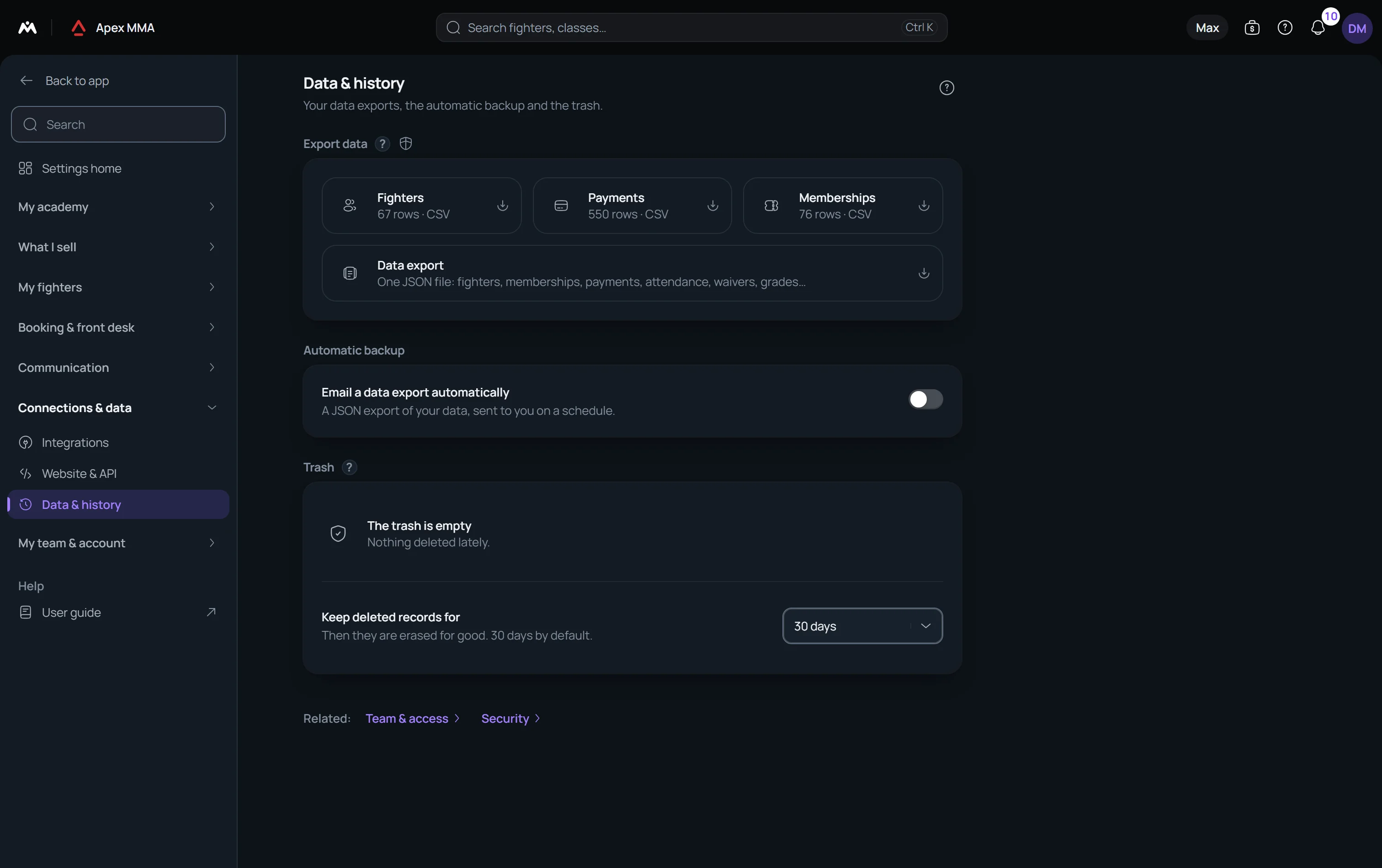
Members, Payments and Memberships each download as a CSV file that opens in Excel or Google Sheets, and so does Expenses once you have recorded some. The row count is written on each button.
Members carries name, email, phone, plan, status, joined and expires dates, belt, discipline, level, birthdate, tags, whether the member is archived, and the emergency contact. Payments carries date, member name, amount, type, method, period, receipt number and note. Memberships carries member, plan, status, price, amount paid, remaining balance, start and end dates, credits used and total, discount and its reason. Expenses carries date, category, supplier, amount, payment method and note.
The data export#
Path: Settings › Data & history › Export data › Data export.
The wide button underneath downloads your data as one JSON file, free and without going through support: members, memberships, payments, attendance, signed waivers, grades, competitions, notes and files. It is meant to be kept somewhere safe, not opened in a spreadsheet.
Only Owner and Admin see this button, and the server checks that too. Sign-in secrets such as your account password are stripped out of the file before it is sent, and the trash is not included.
How long deleted records are kept
Path: Settings › Data & history › Trash › Keep deleted records for.
At the bottom of the trash, Keep deleted records for sets the window: thirty days by default, from seven days up to a year. After that they are erased and cannot be recovered.
Troubleshooting
The trash: what lands there and what does not
Path: Settings › Data & history › Trash.
Members, classes, leads, coaches, competitions, products, message templates, team members, class programs, automations, email campaigns, programming tracks and workouts land in the trash first and stay recoverable.
Payments, memberships, notes and attachments are deleted for good straight away. There is nothing to recover.
Each line says what it was, who deleted it and when, what restoring would actually bring back, and how many days are left. The trash only appears for roles allowed to delete records.
Restore brings an entry back. The ⋯ menu on its line has Delete for good, and Empty the trash under the list erases everything listed.