How do I set up my gym: logo, business type, opening hours?
The General tab holds your identity and your business type. The switches that open your gym to members live one tab further, in Member portal.
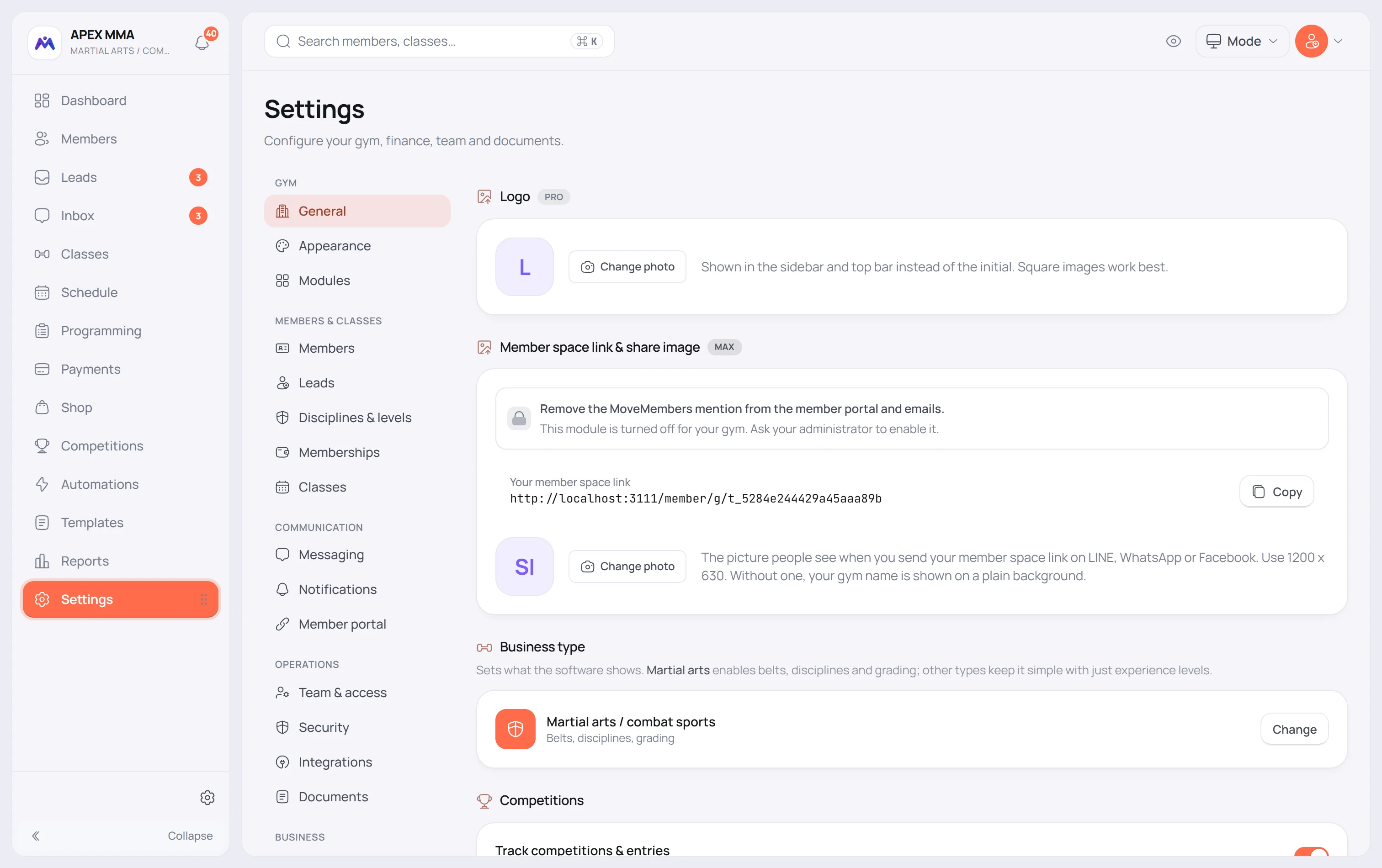
Settings › General › Logo
ขั้นตอน
- 1Open Settings › General.
- 2In Business type, click Change.
- 3Pick your activity in the window that opens.
- 4A second window asks what to do with your lists of disciplines, belts and levels. Choose Reset to defaults to take the new type's lists, or Keep mine to keep yours.
หัวข้อในหน้านี้7
รู้ไว้จะดี
Your logo#
Path: Settings › General › Logo.
The logo replaces the initial of your gym name in the sidebar and the top bar. Square pictures work best. Click the picture to pick a file, then crop it. Remove it the same way and the initial comes back.
Opening hours, clock and first day of the week#
Path: Settings › General › Opening hours.
Fill one row per day. Turn a day off and its hours disappear, replaced by Closed. Copy Monday to all writes Monday's row into the other six days.
The time format switch changes how every time is written across the software: 21:00 or 9:00 PM. First day of week changes where your schedule and calendars start, Monday or Sunday.
เมื่อมีปัญหา
The switches that open your gym to members are in Member portal, not in General
Path: Settings › Member portal › Member self-booking.
Four switches live there: Let members book classes online, Self check-in kiosk, Let members set up auto-pay, and Show who's booked to members. They were moved out of General, which is why an older note may still send you to the wrong tab.
They save the moment you flip them, with no confirmation. If your role is not Owner or Admin, the switch snaps back and a message says so.
Hours do not save by themselves
The toggles on this page save on the spot. The opening hours do not.
As soon as you touch an hour, a bar appears at the bottom of the screen saying you have unsaved changes. Click Save on that bar. Discard puts the hours back as they were. Leaving the tab with the bar still showing asks you first.
Appearance and language belong to the device, not to the gym
Path: Settings › Appearance.
Language, light or dark theme, menu side, text size, density, content width, reduce motion and high contrast are all saved on the device you are using. The tablet at the front desk and your phone each keep their own.
One exception: the accent colour is also saved on your account, so a new device picks up your colour instead of the default one for your activity.