
Account credit is a value on a member's account that comes off the price of their next plan. Reward points and Invite a friend are two ways to earn it. It is never paid out as cash.
หัวข้อในหน้านี้
Three tools, one account credit#
Account credit is a value that sits on a member's account and comes off the price of the next plan they buy. It is not money received: using it lowers the price of the sale, and only the money actually paid is recorded as a payment. It can never be exchanged for cash.
Reward points and Invite a friend both pay out in account credit. Points turn what a member spends into credit. Invite a friend gives credit to the member who brings a friend. Both need account credit to be on.
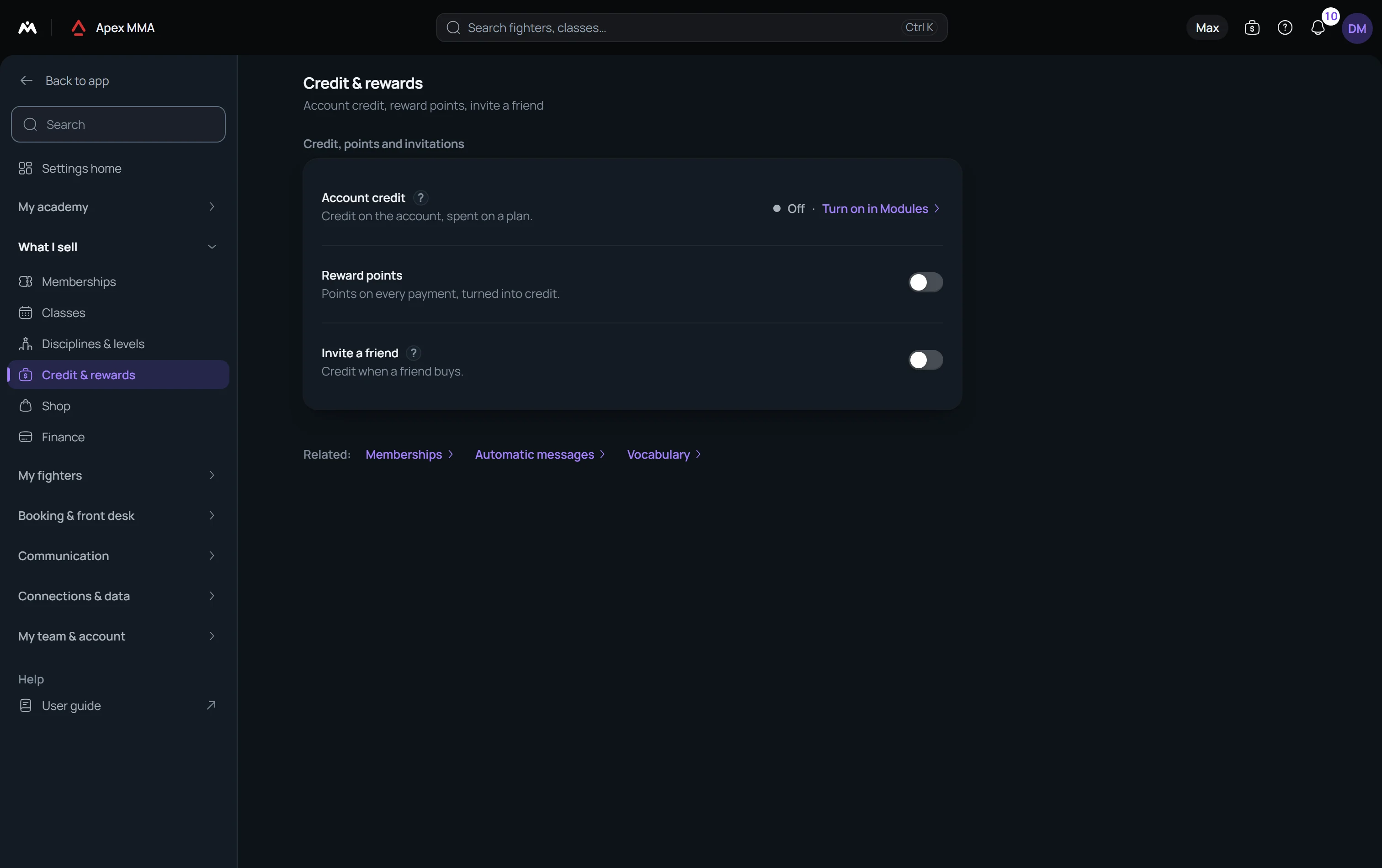
Path: Settings › Modules › Credit & rewards. The switch turns on account credit. Everything else is set in one card, Credit, points and invitations, on Settings › Credit & rewards. The whole tool is included from the Pro plan.
Account credit: settings, adding and spending#
Path: Settings › Credit & rewards.
In the card Credit, points and invitations, the row Account credit shows On or Off and, once it is on, two settings. Combine with discounts decides whether credit can pay for a discounted sale or a first-time offer. It is off by default, so a discounted sale cannot also use credit. Plans credit can pay for is All plans, or Chosen plans with a chip for each plan. A chosen list left empty opens nothing, and the card says No plan chosen yet: credit can't pay for any sale.
Path: Members › a member › Payments › Account credit › Adjust. Add credit or Remove credit takes an Amount, a Reason that only your team sees, and an optional Expires on date. Left empty, the credit never expires. The sheet shows the Balance after before you save.
The credit block is shown to roles that can see amounts, and Adjust needs the right to refund payments. Credit comes in lots, each with its own date. The one that expires first is spent first, then the lots with no expiry. A cancelled sale gives the credit back to the same lots, with their original dates.
To spend it, sell a plan from the member's profile or from the front desk sell sheet. When the member has a balance, Use account credit appears with the amount available, and Credit to use takes up to the balance or the price, whichever is lower. The Till does not offer it.
Reward points#
Path: Settings › Credit & rewards.
In the row Reward points, turn the switch on, then set three numbers under Earning and converting: Spend for 1 point, Points per conversion and Credit they give. The sentences under the fields restate them, for example how much a member must spend to earn a point and about what percentage comes back. The starting values are 1,000 spent for a point, 10 points per conversion, 500 of credit and a life of 12 months for the points. Shop purchases earn points from the start, and welcome and first-time offers do not.
Points expire says when points are lost, counted from the day each one is earned: Don't expire, or after 3, 6, 12, 18, 24 or 36 months. Credit from converted points either Expires with its points or Never expires. Shop purchases earn points and Welcome and first-time offers earn points are two more switches. What you call a point is set in Vocabulary.
A member converts points into credit in blocks. The member does it in their space with Convert your points. Your team does it from Members › a member › Payments › Reward points › Convert to credit, and can fix a balance with Adjust points, which asks for a reason.
Invite a friend
Path: Settings › Credit & rewards.
The row Invite a friend rewards a member who brings a friend: they earn account credit when that friend buys a first plan. There is no default amount: you set three numbers and save them before the switch will go on. Credit per friend is the reward. Rewarded friends per month is how many friends can be rewarded in a calendar month. Monthly ceiling is the most you give away in a month. Friend reward expires sets the life of the credit, from the day it is given.
The credit is given when the friend's first paid plan is received, never at sign-up. Welcome and trial offers do not count, and a friend who is already a paying customer earns nothing. A refund or a cancelled payment takes the reward back.
Every member has an invite code. They share it, or a link with the code in it, and the friend enters it on your public booking page, in their own space, or your team sets who invited them on the friend's profile, under Invited by. In the member space, the Invite a friend row lists the friends invited and what they brought in.
Path: Members › a member › Payments › Invite a friend. This card lists the friends of that member, this month's count and the credit received, and Take back the reward reverses one reward by hand, with a reason.