
I cannot find a member: where did they go?
What the search box actually looks at, what each tab really means, and the banner that silently filters your list.
Members › the search field at the top of the list
ขั้นตอน
- 1Open the Archived tab above the list.
- 2Search the name.
- 3Open the profile, then Restore in the menu at the top right.
หัวข้อในหน้านี้6
รู้ไว้จะดี
What the search box actually looks at#
Path: Members › the search field at the top of the list.
The search reads four things: the name, the nickname, the email and the phone. The phone is compared on digits only, so a country code, a leading zero or spaces make no difference.
It does not read tags, notes, the emergency contact or the guardian. Searching a mother's name will not find her child.
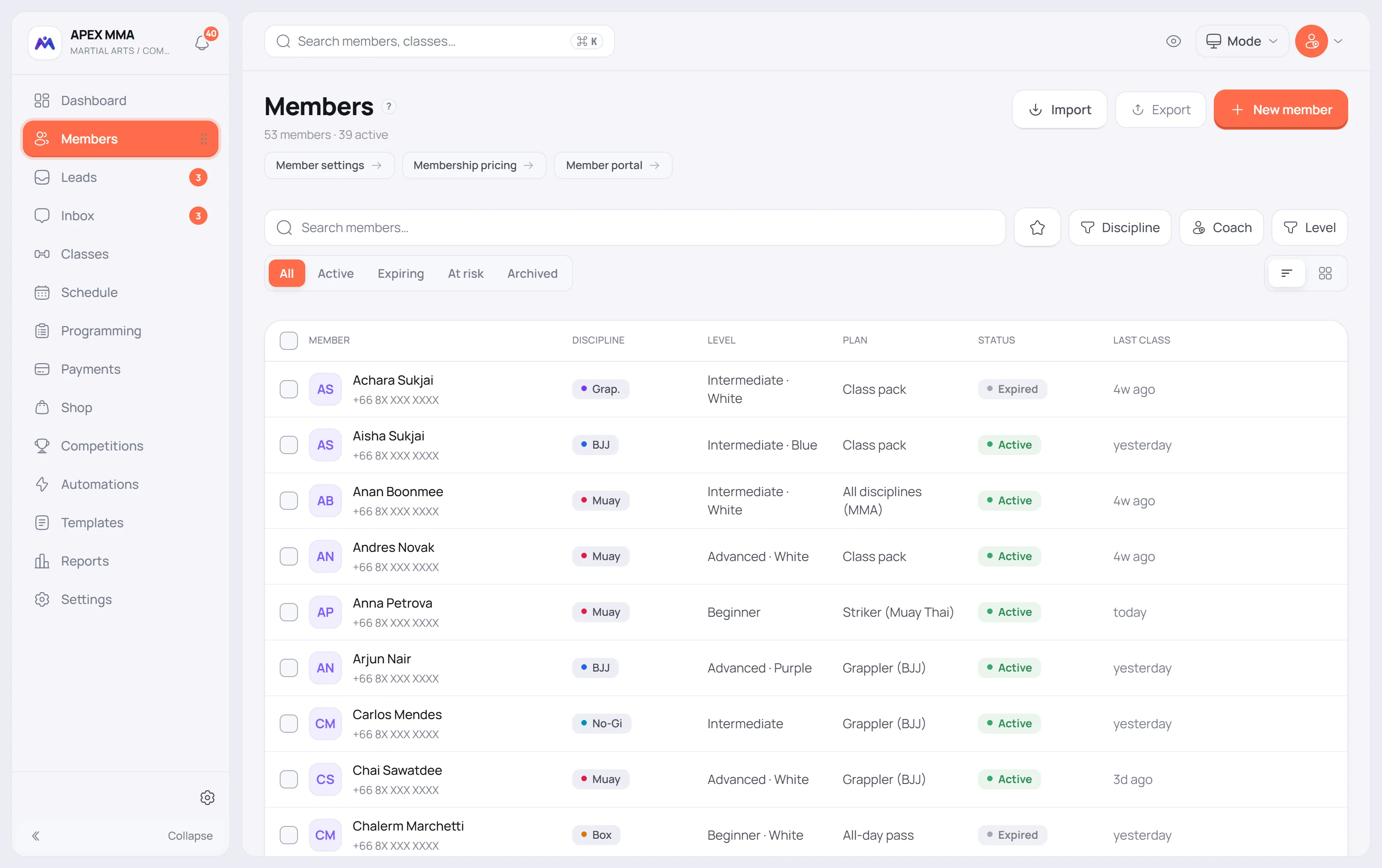
The tabs, and their real definition#
All shows everyone except archived members. Active shows the members whose status is active, whether that status was computed or forced by hand. Completed groups the members whose plans have run their course.
Expiring shows members with a running membership whose end date falls within the next seven days.
At risk is a different thing entirely: a member still marked active, who joined more than twenty one days ago and who has not attended a class in the last twenty one days. That tab only appears once your gym has attendance recorded, because without visits it would list everybody.
The advanced filters
Path: Members › Filters.
Status, Plan, Email, Minor or adult, and, when your gym uses them, Discipline, Level, Coach and Tag. Favorites only keeps the members you starred.
A filter only appears when it has something to offer. No tag in the gym, no Tag filter. The Filters button carries a small number telling you how many are active, and that number is what saves you from a list that looks empty for no reason.
Acting on several members at once
The checkbox in front of each row selects a member. A bar appears with the actions: send a message, add a tag, archive, export and delete.
The archive button follows the tab you are on. From the Archived tab it restores instead of archiving. Delete is only shown to the owner and the admins, and the server checks the permission again on its side.
เมื่อมีปัญหา
Two exports that do not do the same thing
Path: Members › Export. The menu holds two entries: Members (CSV) and Attendance (CSV).
Members (CSV) writes every member of the gym. It ignores your search, your tabs and your filters, and it includes archived members without any column to tell them apart. Use the export in Settings › Data and history if you need that column.
To export only what you are looking at, use Export list, inside the Filters panel. It writes exactly the filtered list. Ticking rows and using Export in the selection bar exports the selection only.
Attendance (CSV) is a different file: one line per booking that was not cancelled, with the date, the member, the class and the status.