
Team alerts are emails that tell your team when something happens: a booking, a payment, a new lead. One card sets the default recipients for all of them, and any alert can have its own.
หัวข้อในหน้านี้
Who receives an alert#
Path: Settings › Team alerts › Default recipients.
One card at the top decides who receives every alert, unless you choose otherwise for one of them. Under Send to, tick the people: Account holder, Owners & admins and, for booking alerts, the coach of the session. Another email (optional) adds any address you like, such as your accountant: type it and press Add.
The names are narrower than they look. Account holder is the person who holds the subscription, and nobody else. Owners & admins is every person with the Owner or Admin role in Team & access, so owners are included. The coach of the session is the coach assigned to that session, or the owner when nobody is assigned. It applies to booking alerts only.
A line under the chips, starting with Goes to, lists the real addresses that will receive the alert, so you can check it without opening another screen.
Give one alert its own recipients#
Path: Settings › Team alerts › Choose recipients.
The link appears under an alert once it is switched on. It opens the same recipients block for that alert alone. From then on the alert keeps its own recipients, and Use the default recipients gives it back to the card at the top.
New lead and Member email bounced already go to the account holder and to the owners and admins, so they do not follow the card at the top until you hand them back.
The alerts, family by family#
Path: Settings › Team alerts.
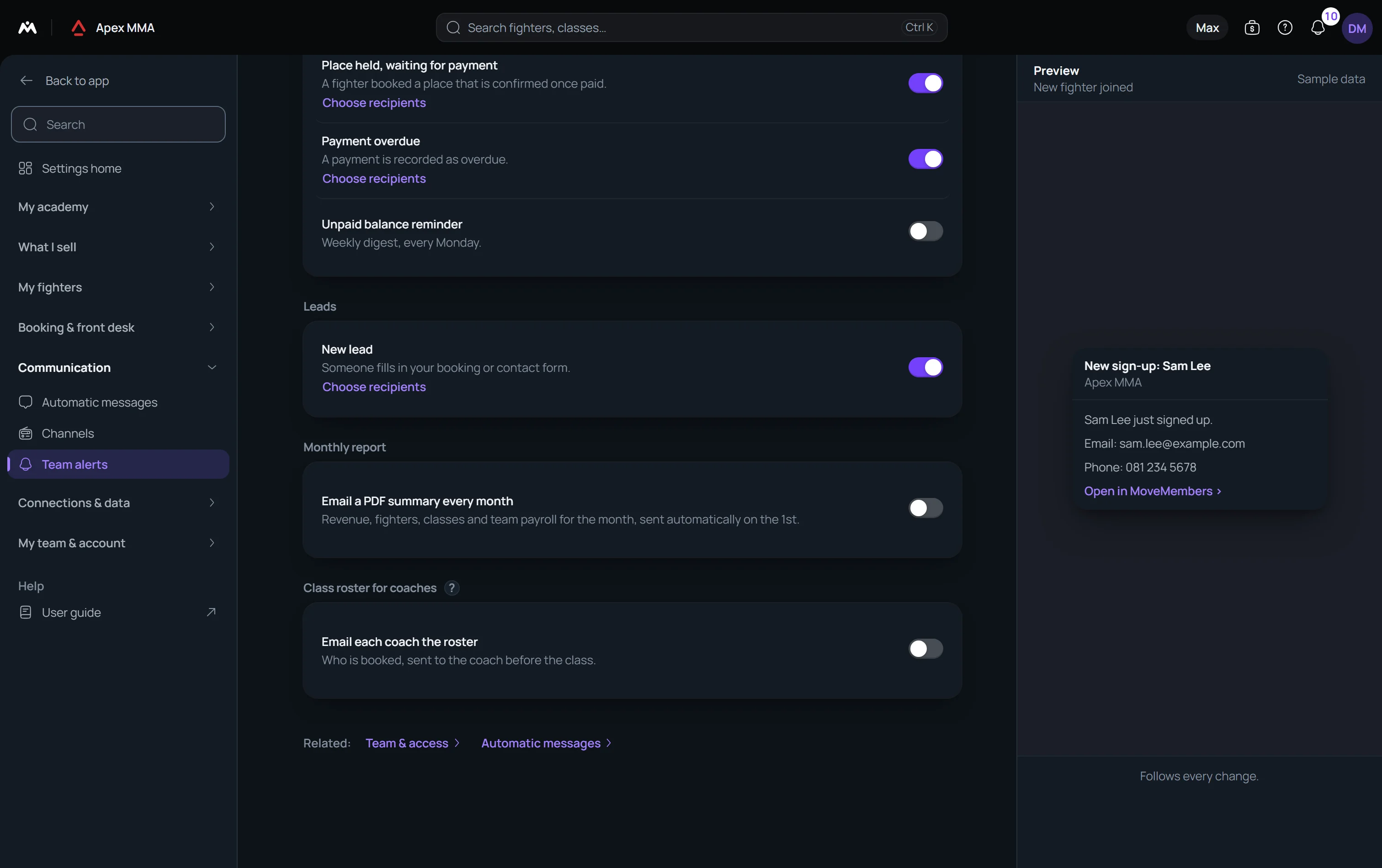
Bookings: New class booking, Booking cancellation, Session is now full and Waitlist promotion. All four are off until you switch them on.
Members: New member joined, Membership expiring soon, Membership expired, Waiver missing, Member email bounced, New personal record and Milestone reached. New member joined, Membership expiring soon, Member email bounced and Milestone reached are on by default. The membership alerts are checked every day.
Payments: New payment received, Payment waiting for your confirmation, Place held, waiting for payment, Payment overdue and Unpaid balance reminder. All are on by default except the reminder, which is a weekly digest sent every Monday.
Leads: New lead, on by default. It also fires when a newcomer books from your public booking page.
Email each coach the roster before class
Path: Settings › Team alerts › Class roster for coaches.
Switch on Email each coach the roster, then choose when it goes out in Send it: 1, 2, 3 or 6 hours before the class, or the evening before at 18:00. It is off in every studio until you switch it on, and it is included in every plan.
Each coach with an email address in their coach file gets one email per class, in their own language. It lists the people booked and how many classes each has done, adds Newcomer for a first class, Birthday this week, Milestone when the class is a badge milestone, and the health note when there is one. A class never sends twice.
The email already holds the whole list. The button Open the full class list opens a read-only page for that class alone, without signing in. It stops working 3 hours after the class ends.
Include health notes and Include milestones are on by default and can be switched off. The health note is the field Health or injury note (optional) on the member file. Only your team sees it: it is never shown in the member space, and it leaves only in this roster.
How many days ahead for expiring memberships
Path: Settings › Team alerts › Membership expiring soon › Warn this many days ahead.
The field appears once the alert is on. It takes a number of days from 1 to 90, and 7 by default.
The monthly report
Path: Settings › Team alerts › Monthly report.
Email a PDF summary every month sends, on the 1st, the revenue, the members, the classes and the team payroll of the month. Send to takes one address, filled in with the owner email to begin with. The email follows the language of the person who receives it, English when none is set.
Also send to your accountant is optional. The accountant receives the same PDF, without the button to your dashboard, because they have no account. It leaves after the email to you and never holds it back, and an address identical to yours is skipped. The payroll is in the PDF once you have chosen which sessions you pay for.
The PDF is named after your studio and the month, for example Your studio report September 2026.pdf.
Troubleshooting
Who is not alerted, and in which language
The person who just made the change is not emailed about it. If you create a member yourself, you do not receive New member joined, while the rest of your team does.
Each person receives the alert in the language set on their own team profile, under Receives messages in, including the option Both studio languages. Without one, the language they chose for the software applies, and failing that the languages your gym serves. An address typed by hand receives the languages your gym serves.