
Choose once which sessions you pay for and each coach's rate. The payroll section, in the Coaches tab of Reports, then gives what each coach is owed for the period you pick, and the coach profile records that a month was paid.
หัวข้อในหน้านี้
Set the basis and the rates once#
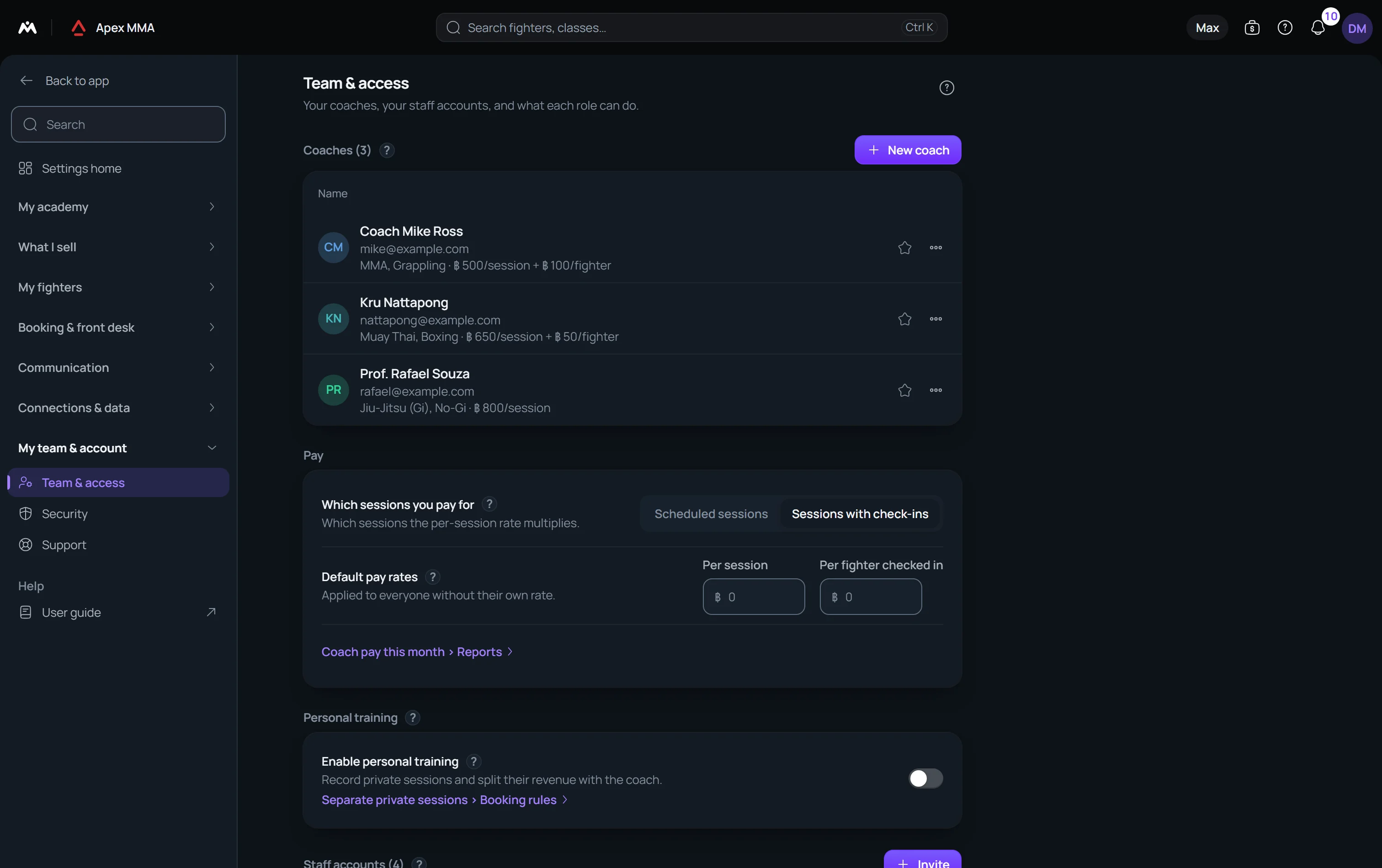
Path: Settings › Team & access › Pay.
Which sessions you pay for has two answers and no default: Scheduled sessions or Sessions with check-ins. A scheduled session was on the timetable that day and was not cancelled, even if nobody came. A session with check-ins is one where at least one member checked in. Both are legitimate, they are rarely the same number, and the software cannot pick for you.
Default pay rates holds Per session, a flat fee for each session, and Per member checked in, an optional bonus for each member who checked in. Either can stay at 0. These rates apply to every coach who has none of their own.
Path: Settings › Team & access. Open a coach, then Compensation. A rate set on a coach takes priority over the defaults. Add compensation rate opens the same two fields, Per session and Per member checked in.
Read what each coach is owed#
Path: Reports › Coaches.
The payroll sits in the Coaches tab, in the section Coaches stats & payroll, as soon as you have a coach. It follows the period chosen at the top of the page (This month to date, Last month, a custom period and so on), with no menu of its own. The count stops at today, so sessions still to come are not in the figures, and a line under the table says so when the period reaches past today.
Each coach has a line with Scheduled, With check-ins, Hours, Attendances, Rate and Pay. The basis you chose is in bold, and Paid on scheduled sessions or Paid on sessions with check-ins is written under the table. The total of the period closes the table.
Pay is the number of sessions on your basis, times the rate per session, plus the bonus for each member checked in. Hours count the scheduled sessions. A coach with no rate shows n/a under Rate, and when no coach has one a line says Add a pay rate to a coach to see payroll figures.
Export CSV downloads the table for the period on screen, with the period, the basis and each coach's rates in the file.
Record that a month was paid#
Path: Settings › Team & access.
Open a coach, then Payments. The profile of a coach lists their months, newest first, each with the sessions on your basis, the amount Due and the sessions behind it. Mark as paid on a month records that you paid it, and the month then shows Paid with the amount. The message offers Undo, and the same line can mark the month as unpaid again. Both gestures are written in the activity log.
Opening a coach from the payroll section takes you to this profile.
Who can see this
Reports is for the owner and the admins. A person who has the Gym settings capability without being a manager opens the Pay panel alone, from the pay line in Settings › Team & access.
The monthly report sent by email on the 1st includes the team payroll of the month. It is switched on in Settings › Team alerts.
Credit sales to a seller and work out commissions
Path: Settings › Team & access › Sales commissions. Turn on Calculate sales commissions, then set a default percentage. A seller can have their own percentage, and a membership can have one too: the seller's rate comes first, then the membership's, then the default.
Every sale made at the counter is credited to the person who recorded it. To count online sales too, turn on Members can credit a seller online and tick the people members may choose: team accounts and coaches without an account (all off by default; a coach with an account is the account). Members then see Who advised you? when they buy a membership in their space, with a name or a role, never an email address, and the sale is credited to that person. A coach is paid with the same rates as the team, and appears in Sales commissions with the sellers.
The Coaches and sales report and the Payments page show Sales commissions for the month: sales, online sales, amount and commission for each seller. A sale with no price or a membership stopped later is left out, and the page says how many.