
A class is a weekly slot, a session is a date. Which panel shows what, and how to work a roster.
On this page
Steps
- Open the Schedule and go to the right day.
- Tap the class card.
- Search the member in the Enrolled tab.
- Press Book in.
- Tap the check on their row when they arrive.
A class has seats, a session has a fill rate#
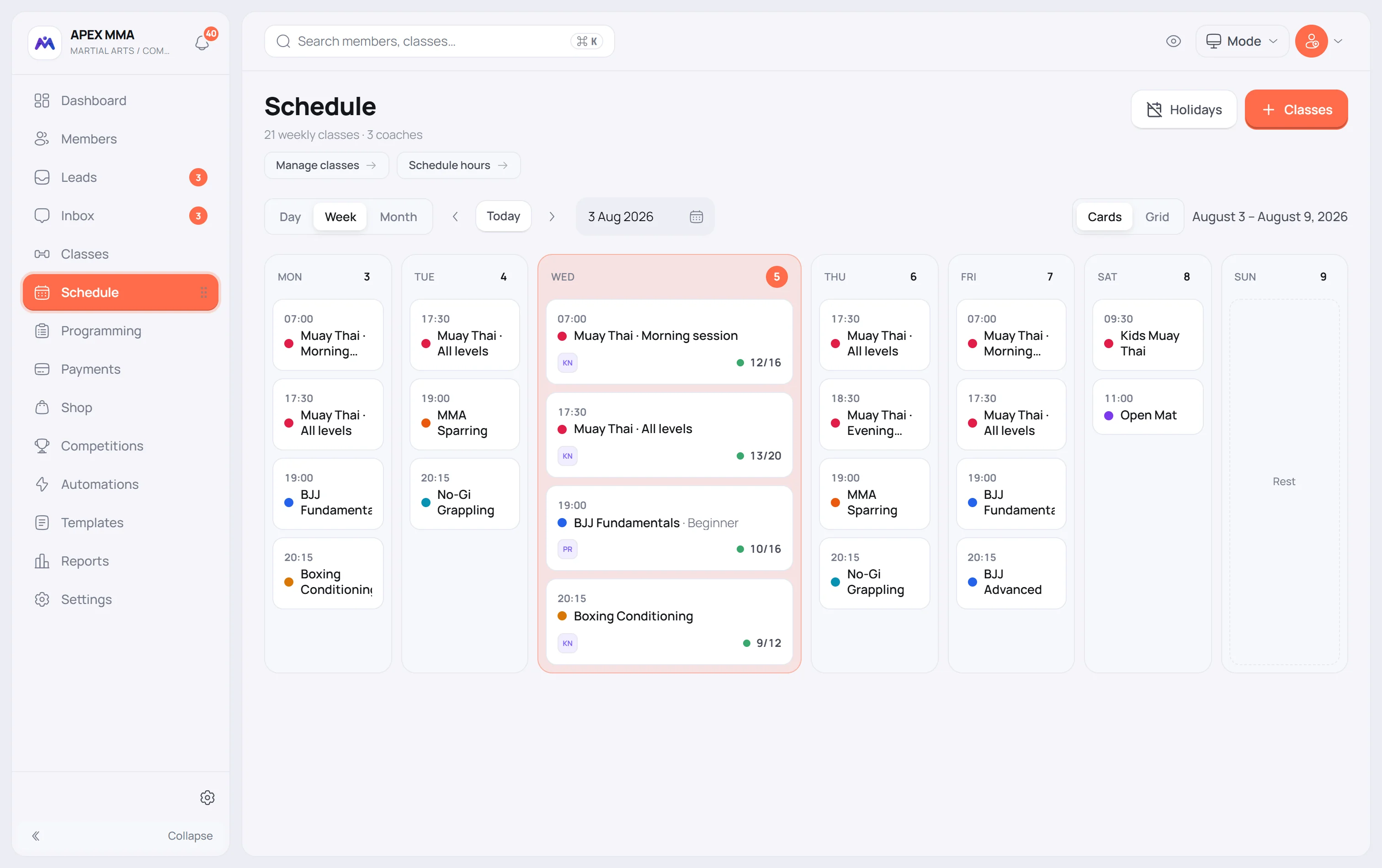
A recurring class line shows a capacity, for example twenty seats per session. It does not show a fill rate, because a fill rate belongs to a date and changes from one week to the next. A one-off class does show a ratio, because a one-off is a date.
Open a class from the Classes page and you get the class panel: its overview, its sessions, its details, its program, its stats. Open a card from the Schedule and you get a session: who is booked, who showed up, and the option to cancel that date.
When the session is full#
When the booked count reaches the capacity, the search field stays: press Add to waiting list to put the person in the queue. If Allow overbooking is switched on in your booking rules, Overbook books them in anyway.
The waitlist rows show the queue in order. Move into the class stays greyed out while the session is full, unless overbooking is allowed. To fit one more person without overbooking, raise the capacity for that date first, from the Sessions tab.
Checking someone in does not test the capacity: from the Counter or from the Kiosk you can always add one more person.
Change the coach or the capacity for one date#
Path: Classes › a class › Sessions tab › tap a row.
The tab lists the next occurrences of the class, and the From and To fields let you reach a date further out. Set another coach, or another capacity, then Save. Reset to class default removes the exception.
Move a class to another day or time
Path: Classes › a class › Edit the class.
Change the days or the times in the form, then press Save. To move one weekday only, open the More menu of the class panel and choose Edit followed by the day name.
What the schedule displays
The day is drawn from your opening hours. Set them in Settings › General › Hours & formats if your first or last class falls outside them.
A location filter appears next to the date controls once you have more than one site. The Location field appears in the class form as soon as you create the FIRST one, which is why the field can be there before the filter is.
The Legend button at the end of the filters explains the colours of the classes and the Full and Low fill tags on the cards.
Month view shows each day as a tile: how many sessions it holds, how full it is, and a small coloured square for each type of class. A day that has not happened yet shows the bookings taken instead of a percentage, and a closed day says Closed. Tapping a day opens the Day view on that date.