
One form for the whole timetable: several days at once, one-off sessions, capacity, and why the same class can appear twice.
On this page
Steps
- Type the class name.
- Pick a discipline and a coach if you use them.
- Choose Every week or One-off.
- Tick the days, then add the times.
- Set the duration and the capacity.
- Save.
Start from a template on an empty schedule#
Path: Schedule › Start from a template. On a schedule with no classes yet, it places a typical week for your activity on your opening hours. When it is done, the schedule opens on the first upcoming session instead of on days that have already passed, and a toast offers Assign a coach to give the new classes a coach in one go.
A class you created less than a day ago never shows Low fill: nobody has had time to book it yet.
One class, one line per time slot#
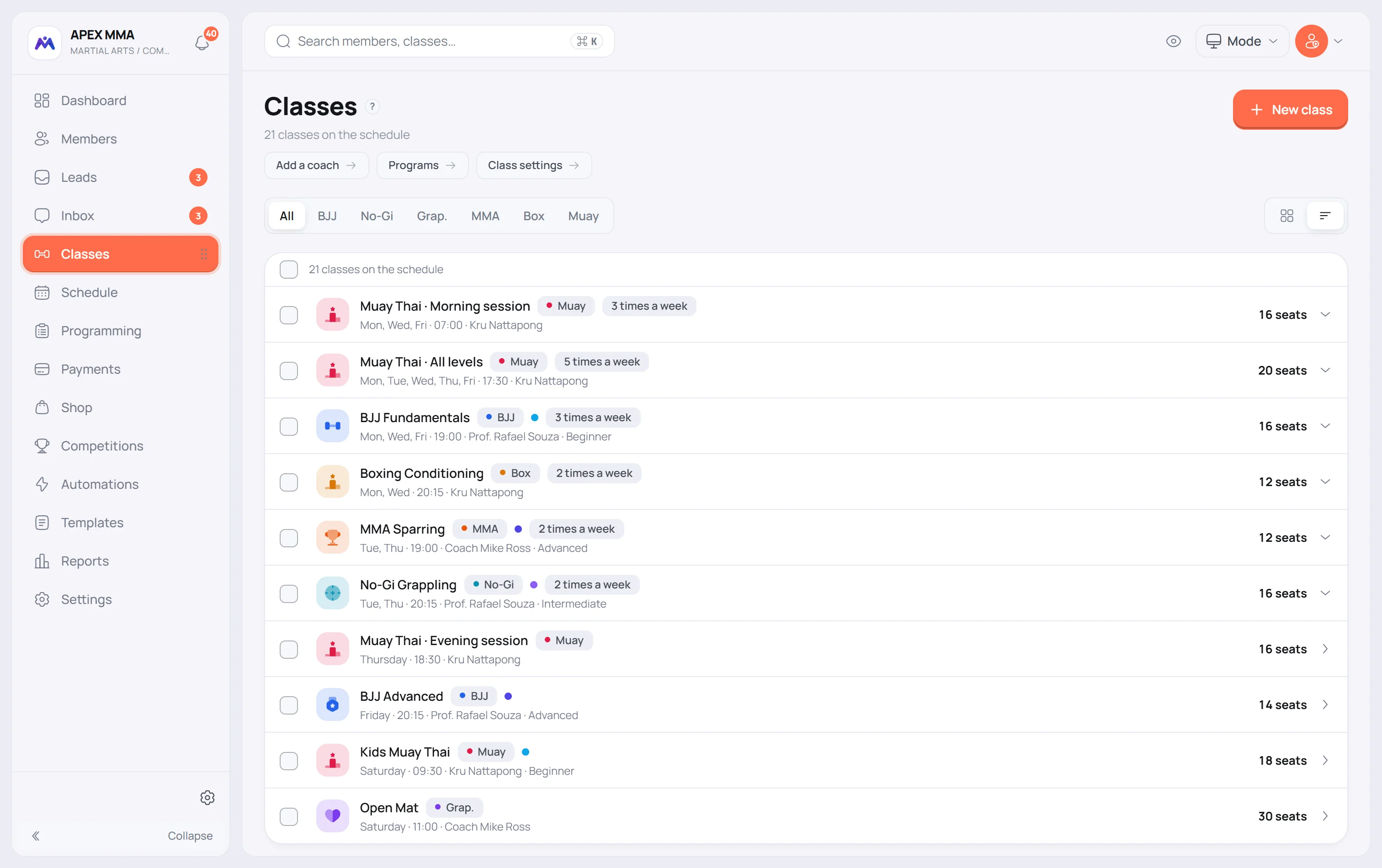
Behind the scenes, each time slot is its own record. A class taught Monday and Friday is two records, not one record with two days.
The list hides that. It puts slots together under a single line when they share a name, a discipline, a level and a location. The day name is stripped from the title first, so No-Gi Monday and No-Gi Friday land on the same line.
The coach and the time are deliberately left out of that comparison. You can hand Friday to someone else, or shift Saturday by an hour, and it stays the same class. A one-off class keeps its own line, because its date is the important part.
Every week, or one day only#
Repeats is set to Every week by default, because a gym timetable is weekly by nature.
One-off is for a seminar, a trial class, a workshop. You give it a date instead of weekdays, and it happens that day only.
Several days and several times at once
Every combination of a day and a time becomes its own slot of the week. Three days with two times is six sessions a week of the same class. The form counts them for you, in A typical day on the right of the form, or in the bar at the bottom of it on a narrow screen.
When you edit, the same rule applies. The first combination updates the class you opened and keeps its bookings. Any extra combination creates a new class next to it.
Capacity, duration and turnaround
Turnaround after the session is the dead time reserved once the class ends, before the next one can start in the same space. It sits under More options › Advanced options. Leave it on Use default to follow the gym setting, or set a value for this class only.
Capacity and duration are pre-filled. The first class you create on a device takes the defaults from Settings › Classes › Class defaults, twenty seats and sixty minutes out of the box. From the second one on, the form reuses the duration, the time, the discipline and, for a class with more than one place, the capacity of the LAST class you saved on that device. The coach, the level and the day are never reused. Each reused value is marked from your last class.
When two classes overlap
Saving a class that runs into another one on the same day opens a warning that names the class it clashes with. The turnaround is counted in the clash.
Two classes at different locations do not clash, as long as both have a location set. If either one has no location, the warning appears anyway, because nothing says whether they share the room.
Duplicates, editing and deleting
If the same day and hour was saved twice, a badge counts the duplicates and a Remove duplicates link appears on the line.
On a class with several days, the panel menu offers two doors: Edit the class, which carries the change to every day, and Edit followed by a day name, for example Edit Monday, which only touches that day.
Delete removes the class from the timetable, and its bookings go with it, past ones included. To delete a class, tick it on the Classes page and choose Delete in the menu of the bar, or open the class and use Delete the whole class, which asks you to type its name. Both land in the Trash, where you can still restore them. Delete class, in the menu of a card on the Schedule, removes only the slot you opened it on.