
Write the messages you reuse, see exactly what each channel will send, and know where each one is already plugged in.
On this page
Steps
- Open Automations, switch to the Messages tab and press New message.
- Type a name. Remember it becomes the email subject.
- Write the message and tap the tags you need.
- Read the two preview panels below the message.
- Save.
One card per message#
Path: Automations › Messages › New message.
The list is what opens by default, because a name is what you scan when you have twenty. Switch to the card view to see the message itself, which is what you recognise when you have eight.
The lightning mark means at least one automation already sends this text. The cursor mark means you can still send it by hand. A message used by an automation is not locked, it carries both marks.
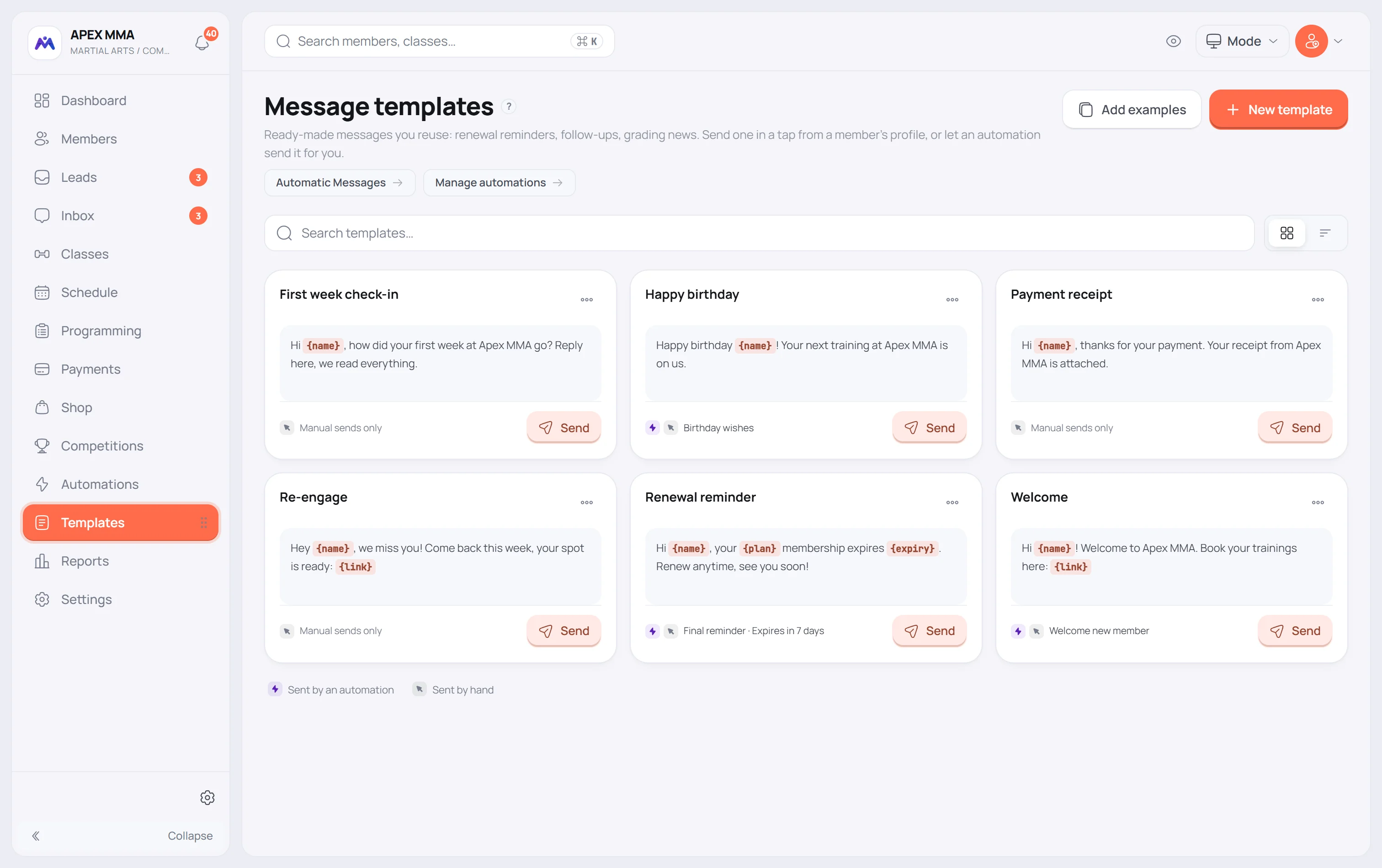
Check what each channel really sends#
As soon as the message is not empty, two preview panels appear side by side: Email on the left, LINE, WhatsApp and SMS on the right. They are filled with sample values and built by the same code that does the real sending, so they cannot drift from what a member receives.
Below the previews you can send yourself a test by email. The test arrives with sample values instead of the variables, and its subject is prefixed with Test.
The Preview the email button shows the whole email as it will arrive, with your logo and colours.
Sending one by hand#
Path: Automations › Messages › Send › search a member › pick a channel.
Only the channels that work for that member are offered: email if the member has an address, LINE if the member linked their LINE and your gym connected LINE, WhatsApp if the member has a phone and WhatsApp is connected.
Email and LINE go out straight away from your gym account. WhatsApp opens WhatsApp with the text already filled in, so you still press send there yourself. The same two-step menu is on every member profile and in the member list.
WhatsApp needs a Meta template
At the bottom of the editor there is an optional WhatsApp block: the name of one of your approved Meta templates and its language code. The member's first name is passed as the first variable.
This mapping only matters for automatic sending. When an automation has WhatsApp ticked and the template has no Meta template name, WhatsApp is skipped for that send and the reason is written in the activity log.
Ready-made examples, and deleting
Add examples creates a small set of templates: renewal reminder, payment reminder, happy birthday, welcome, we miss you, and, when online booking is available for your gym, one more called Your member space which shows the button tag in its proper place.
Pressing it again does not create duplicates: it only adds the names you do not already have.
A deleted template goes to the trash, in Settings › Data & history, and can be restored for as long as your retention setting keeps it. If it was used by automations, the confirmation names them before you delete.