
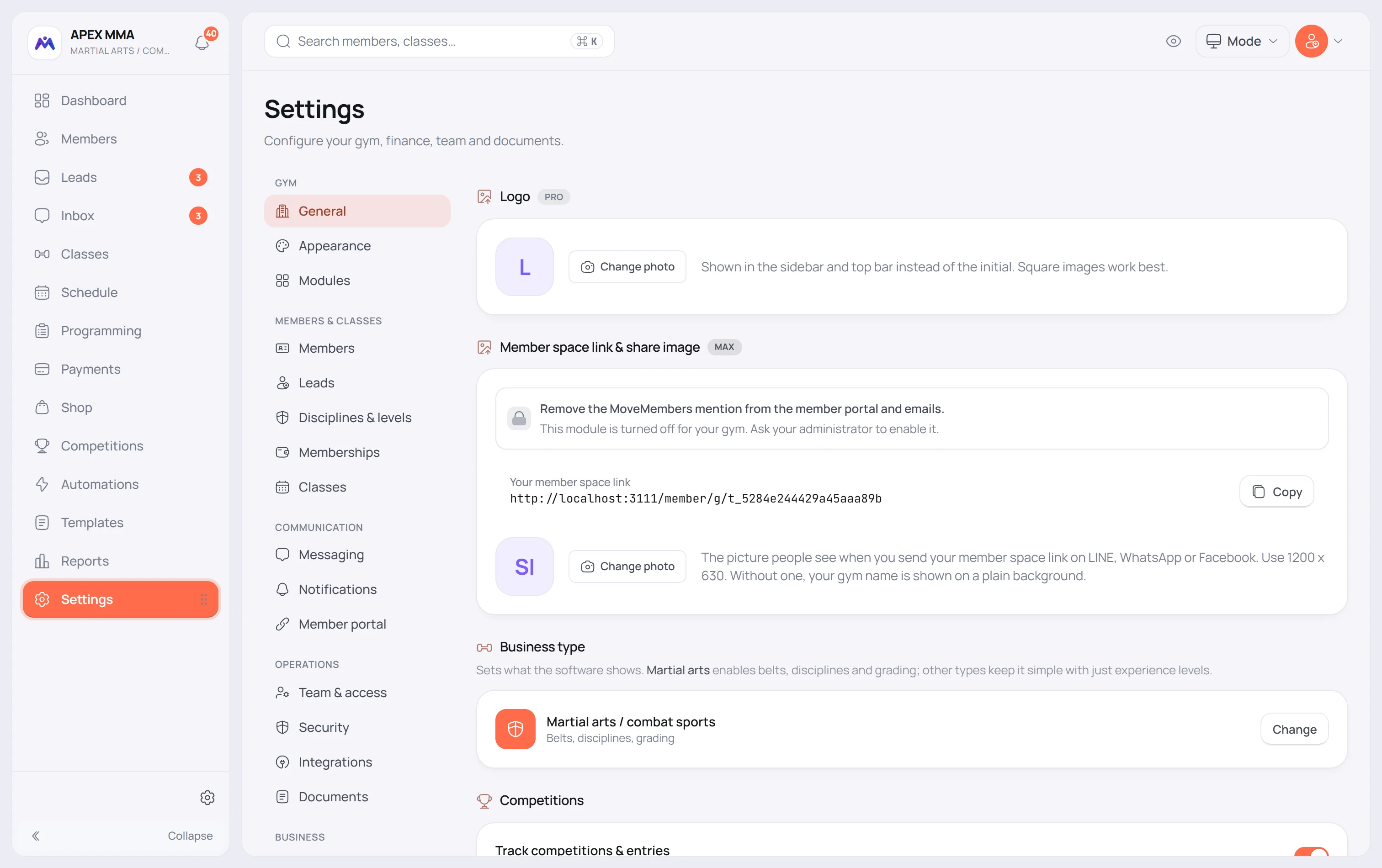
The General tab holds your identity, your business type and your opening hours. The switches that open your gym to members live in Member portal and Check-in.
On this page
Steps
- Open Settings › General.
- In the card How your studio works, click Change.
- Pick your activity in the window that opens.
- A question asks you to confirm: the menu, the words and the dashboard follow the new type, while your members, schedule and payments do not change. You can switch back at any time.
- A second window asks what to do with your lists of disciplines, belts and levels. Choose Reset to defaults to take the new type's lists, or Keep mine to keep yours.
Your logo#
Path: Settings › Brand › Your logo.
A square logo is required. Press Upload your logo (Change once you have one), or drop or paste a PNG, SVG, JPG or WebP file. A window opens with your whole logo inside a square and two previews: On light and On dark. Drag to move it, use Zoom, switch to Fill the square if you want it larger, or Remove the background. A one-colour logo is drawn in ink on the light version and in white on the dark version. When both look right, press Use this logo. The strip Where it appears shows the right square on each real screen: the member portal, emails, receipts, the app icon and the share card.
To replace only one version, click the On light tile or the On dark tile. You choose a file, frame it, and only that version is saved; the other one stays as it is. Change replaces both versions.
Opening hours, clock and first day of the week#
Path: Settings › General › Opening hours.
The page shows your week in one line, for example Mon to Sat 09:00 to 21:00 · Sun closed. Press Edit to open the days. Fill one row per day. Turn a day off and its hours disappear, replaced by Closed. Copy Monday to all writes Monday's row into the other six days.
A day can have more than one range, for example a morning and an evening: press Add a range, up to six ranges a day.
The time format switch changes how every time is written across the software: 21:00 or 9:00 PM. Week starts on changes where your schedule and calendars start, Monday or Sunday.
The home of Settings: find a setting, see the essentials
Path: Settings.
Settings opens on a home page, not on a tab. At the top, a large search box asks What do you want to set? Type a word such as price, LINE, receipt or hours: it finds the tabs and the options inside them, and it opens the right one. Press / anywhere on the page to jump into it.
To do appears only when something is missing, for example a country not chosen, a membership without a price or online booking switched off. Each line has one button that opens the setting. When nothing is missing, the block is not there at all.
Your shortcuts lists up to six settings. The ones you pinned come first, then the ones you opened lately, and they do not move around by themselves. Edit lets you pin or remove one, and Add a shortcut adds another. A new account starts with the settings that matter most for its type of studio.
Essentials shows eight cards with the current value and a dot: In place, To check or Not connected. They are Studio, Country and currency, Languages, Memberships, Online booking, Online payment, Channels and Team. A card opens its tab and changes nothing by itself.
Recommended for your studio lists suggestions. Nothing changes until you press Apply, and you can undo it. Recently changed shows the last three changes to your configuration, who made them and when, and All history opens Reports › Activity log.
At the bottom, a Free account sees With Pro, MoveMembers also does, and a Pro account sees With Max, MoveMembers also does: up to three cards chosen from how you use the software, each with See how it works. During a trial, the cards say Included in your trial and how many days are left. A Max account sees What's new instead.
Troubleshooting
The switches that open your gym to members are not in General
Path: Settings › Member portal › Member self-booking.
Four switches open your gym to members. Let members book classes online is in the card Member self-booking. Let members set up auto-pay and Show who's booked to members are in the card Options in the Member portal, further down the same page. Self check-in kiosk is in Settings › Check-in. They were moved out of General, which is why an older note may still send you to the wrong tab.
They save the moment you flip them, with no confirmation. If your role is not Owner or Admin, the switch snaps back and a message says so.
Hours do not save by themselves
The toggles on this page save on the spot. The opening hours do not.
The days open in a panel. Change what you need, then press Save at the bottom of the panel. Cancel leaves the hours as they were. Closing the panel with changes still unsaved asks you first.
My display and your language belong to you, not to the gym
Path: your avatar menu › My display.
My display holds the theme (Dark, Light or Auto), Monochrome, Menu position, Text size, Density, Content width, Reduce motion and High contrast. Dark is the default theme. Menu position, Density and Content width are not shown on a phone.
Your theme choice is saved on your own account, so it follows you to another device. The other choices are saved on the device you are using: the tablet at the front desk and your phone each keep their own.
Your language is a personal choice too. Set it in Settings › Languages › Your language: it follows your account, not the device.