
What a member can edit on their own file, the performance and progress switches you own, and the in-app message thread.
On this page
Let the member finish their own file#
At sign-up you can type just a name. The rest belongs on the member's phone, under My details in the Me tab.
They can set their email, phone, nickname, date of birth, emergency contact and emergency phone, and change their photo. If the date of birth makes them under eighteen, two guardian fields appear as well, Guardian and Guardian phone.
A Finish your sign-up card lists what is still to do, the waiver first and then each required field, with a count such as 2 of 6 done. Its Continue button walks the member through the steps one after the other.
Performance: one switch in Modules, everything else in its own page#
Path: Settings › Modules › Performance.
Turn Performance on or off there. Everything else lives in Settings › Performance.
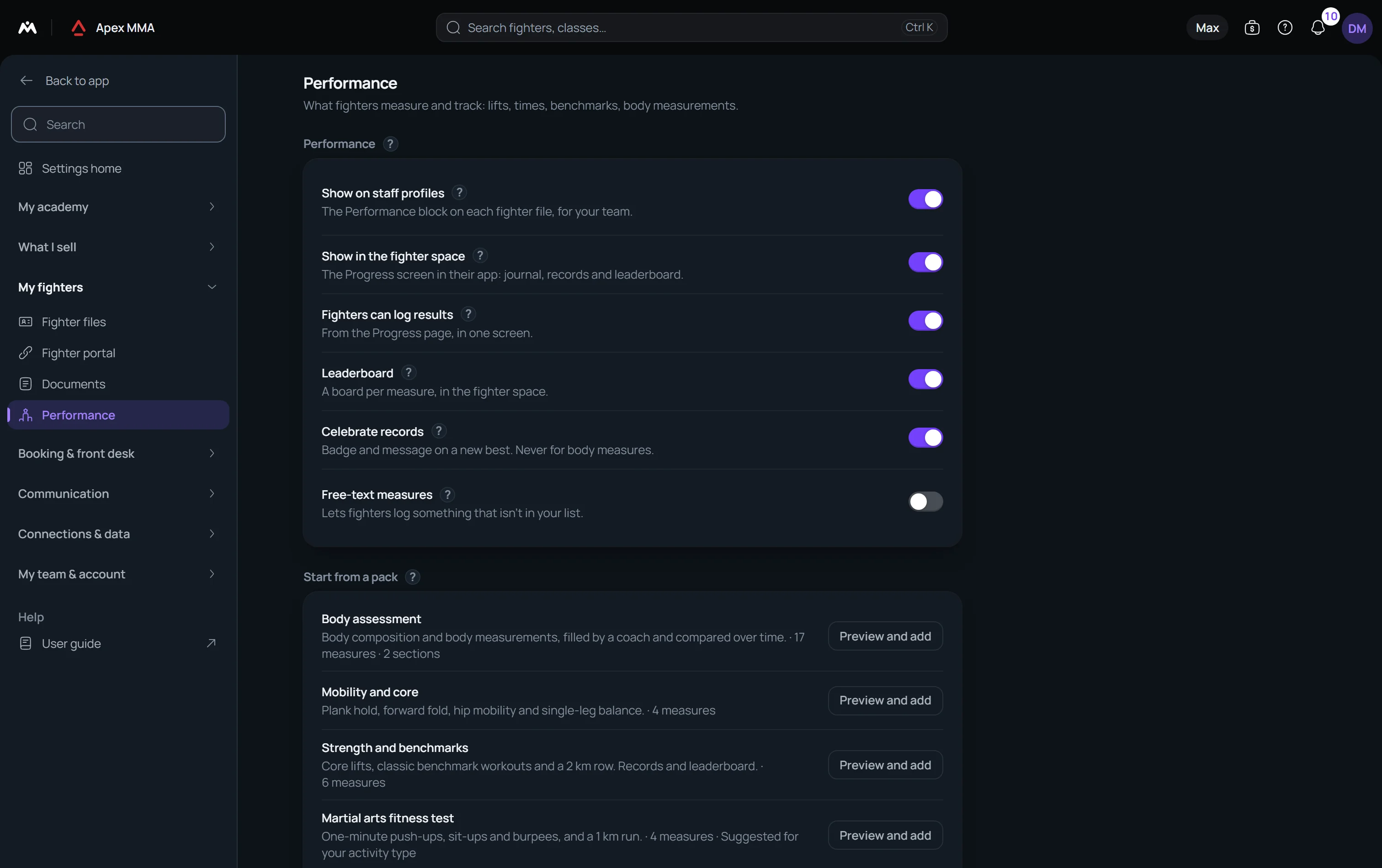
The switch applies everywhere at once: staff profiles and the member space. Two options on the Performance page, Show on staff profiles and Show in the member space, can then hide it from one side only. While the switch is off, the Performance page only shows a link back to Modules.
That page holds the options (staff profiles, member space, members logging results, leaderboard, celebrating records, free-text measures), the packs, the assessment sheets and the measures. In the member space everything sits on one Progress screen, opened from Me, or from Program when your gym publishes one. Members pick from the measures you define there, or type their own if you allow free-text measures.
The in-app message thread#
The Messages tab is a direct thread with the gym. It always works, even for a member with no LINE, no SMS and no email set up. What they write lands in their conversation inside your software, on the channel called In-app.
The tab carries an unread badge that only clears when the member actually opens the tab, not when they open the space.
LINE, when it is set up
If LINE is configured for your gym, a Connect LINE line with a Connect now button sits at the top of the space until the member links their account. Once linked, class reminders, receipts and payment reminders reach them there. The Me tab then shows LINE connected, with a Disconnect button, so a linked member can disconnect it themselves.
Contact card and language
Path: Settings › Member portal › Contact & social links.
These fill a Contact card at the bottom of the space. Fields you leave empty do not appear at all.
The member chooses their own language from the menu behind the avatar at the top right. It changes their space and is saved on their member file as Receives messages in, so the messages they get from you follow it. It never changes your settings or your currency.
Open a community board for your members
Path: Settings › Performance › Community board. Turn it on and your members get a Community board card in their space, with this month's most regular people (classes attended) and the people who set records.
Nobody appears until they choose to: each member turns on Show me on the community board for themselves. Others see only a first name and the first letter of the last name, never an email address or a phone number. Body measurements and hidden measures never count. Tied people share the same rank.
Troubleshooting
What is written to the activity log, and what is not
A change to the nickname, the date of birth, the emergency contact, the guardian or the language is written to the activity log under the member's name, so you can tell it apart from what your staff typed.
A member who changes only their email or their phone leaves no line in that log. The value is updated, the trace is not written.