
One place for every conversation with your members, with the channel chosen at the moment you reply.
On this page
One conversation per member#
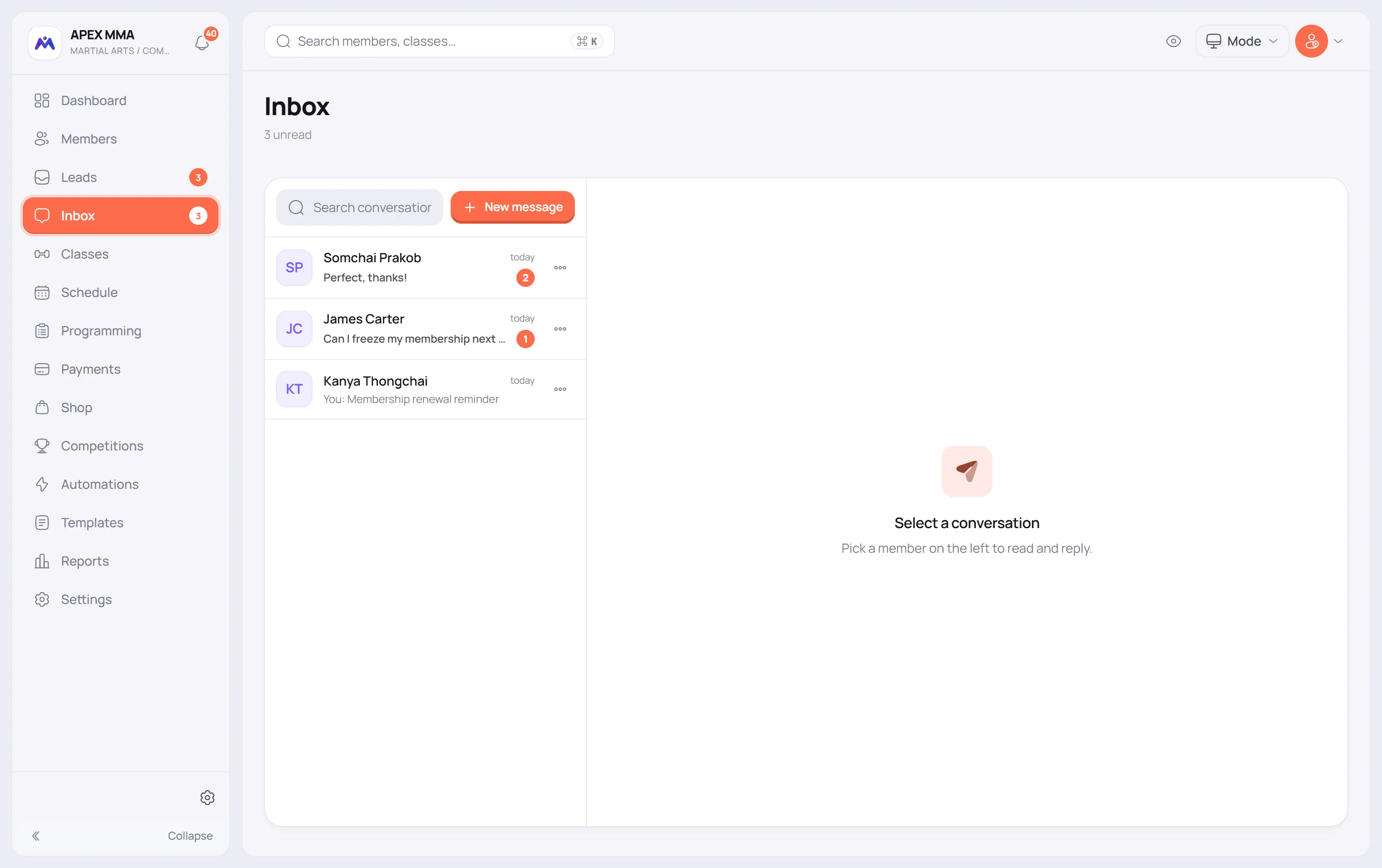
Path: Inbox.
Every message with a member is grouped into a single conversation, whatever channel it came from. Unread conversations come first, then the most recent.
The counter next to Inbox in the menu counts the conversations that have at least one unread incoming message and are not archived. Opening a conversation marks it read. The pencil button next to the search, named New message, lets you start a conversation with any member, even one who never wrote to you. The Options menu has Mark all as read.
On a very wide screen, a third column shows which channels reach the member, their next session and last visit, and whether they are up to date on payments if your role may see payments.
Choosing the channel before you send#
The channel selector sits in the tools row above the composer, next to the Messages button, not against the send button. Four channels at most, and the list depends on the member: LINE if they linked their LINE and your gym connected LINE, SMS if they have a phone and SMS is connected, Email if they have an address, and In-app, which is always there.
In-app is the default. It delivers the message inside the member's own space, with no outside gateway and no cost. The member reads it and answers from there. If the message stays unread for a few minutes and the member has an email address, they also get a short email telling them there is a new message.
The paperclip attaches an image, a PDF, a CSV, an Excel or a Word file of about 2 MB at most. It works on In-app only: on the other channels it stays inactive and says why.
What actually arrives in the Inbox#
Two things come in. Messages a member sends from their member space, which arrive as In-app. And LINE messages, when the member's LINE is linked to their profile and your gym's LINE is connected.
Stickers, photos, voice notes and locations sent on LINE appear as a line saying what kind of message it was. The content itself is not shown, so open LINE to look.
Your reusable messages, inside the conversation
The Messages button on the left of the composer lists your messages. Choosing one puts it in the field, already filled with that member's name, plan, expiry date and member space link, and replaces what you had typed.
Inserting fills the field, it does not send. Read it, edit it if you want, choose the channel, then send. That is the difference with sending a template from the member profile, which sends immediately on the channel you pick.
Archiving and deleting
The menu on a conversation row offers Archive and Delete. The list above it filters on All, Unread, Read and Archived, each with its own count, and Archived only appears once you have archived something. A new incoming message brings the conversation back to the active list on its own.
Delete removes the whole conversation permanently, for you and for the member. You can also delete a single message from the thread if your role is allowed to delete records.