
Your catalogue of offers: the four kinds of plan, and the two fields that silently break reminders.
On this page
Steps
- Tap the plan row to open its panel.
- Set the name your staff will recognise at the desk.
- Choose the type, because it decides whether Credits appears.
- Type the price, the number of days, and for a pack or a drop-in the number of classes.
- Pick an icon and a colour so the plan is recognisable in a list.
Four kinds of plan#
Path: Settings › Memberships.
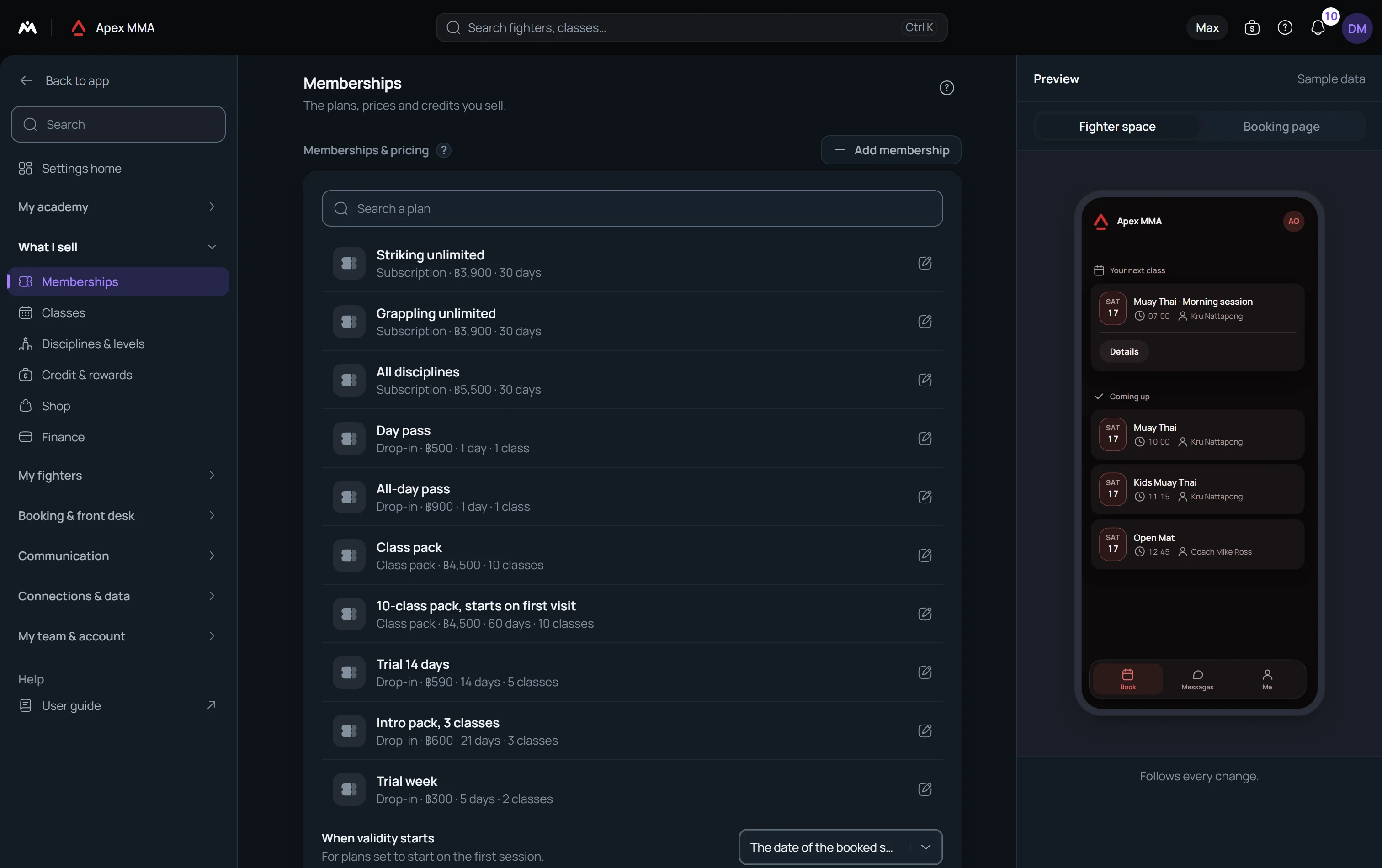
Every plan you sell is one of four kinds: Subscription, Class pack, Drop-in, and Private. The kind is not decoration. It decides which fields you get and how the plan behaves once a member holds it.
Press Add membership to create a plan, or tap an existing plan to change it.
Class pack, Drop-in and Private carry class credits, so a Classes included field appears (a Private plan such as PT 10 sessions is a pack of ten sessions). Subscription does not, and the field stays hidden. A subscription lets the member book as much as they want until the end date; a pack or a drop-in spends one credit per booking, or more when a class costs more credits.
Optional rules in the plan panel#
Path: Settings › Memberships › a plan.
Below the main fields, the plan panel holds optional rules. Most plans use none of them.
What it includes is a short text, up to 600 characters, shown under the plan name in the price list and on the purchase screen.
Who can buy this plan appears once you have created member groups. Until then, everyone can buy every plan.
What it pays for appears when you run more than one discipline. Tick disciplines to limit the plan to those classes; tick none and it pays for every class.
When you sell more than six plans and at least one is limited to some disciplines, your members first pick Which class? on the purchase screen and then see only the plans valid for it, with All packages to see everything.
The option Validity starts on the first session counts the days of the plan from the member's first session, instead of the day you add the plan. The option Trial offer lets the Trial conversions report follow who buys a real plan afterwards. The option Newcomers only refuses anyone who already had this plan, paid for a membership or attended a session.
Booking rules, closed by default, set a maximum number of classes per day, weekly limits, a longer booking window for holders of this plan, and whether late cancellations count. Time window limits the plan to sessions that start between two times, for example 12:00 to 17:00.
Private slot lets one booking take the whole session. Shared pack lets one membership be used by several members.
Selling, also closed by default, holds loyalty discounts, a last day of sale, a start date, hiding the plan from the public price list, one purchase per person, free extras, a buddy pass, freeze limits and Monthly payments. Monthly payments sells the plan as a fixed number of monthly card payments and needs Stripe.
Duplicate a plan, one card for 5 or 10 classes, and a free class at sign-up#
Path: Settings › Memberships.
Duplicate, in the menu of a plan panel, opens a copy with the same price, classes and rules, named after the plan with (copy) added. A name already in use gets a number. Nothing is saved until you press Done.
To sell 5 or 10 classes in one card, create the two plans as usual, each with its own price and classes, then type the same name in Sold in one card, for example Launch pack. Use Size shown in the card for the short text, such as 5 classes.
Your members then see one card, with From and the lowest price. They open it, choose 5 or 10, and pay. At the front desk, Choose a size appears under Product, and the Sell a membership list shows one row you open to pick the size. On the public page with Visitors buy a package before booking, the card lists every size with its price and the visitor chooses the size after the details. The plan chosen is the one that is paid and counted down.
Free class at sign-up, lower on the same page, gives every new member a free plan without booking a class. Pick a free plan (price 0, one class, once per person). The member books it later, while it is valid.
Set the validity on the free plan itself: for example 60 days with Validity starts on the first session ticked and If never used, expires after set to 60. The end date then shows to the member and at the front desk. An import never gives the free class.
Saving your changes
Press Done to save the plan and close its panel. If you leave a changed plan with the back arrow, you are asked whether to save and leave, leave anyway, or stay.
A plan left without a name is dropped when you save.
Troubleshooting
Removing a plan you no longer sell
Remove is in the three-dot menu at the top of the plan panel. After you confirm, it takes the plan out of the list you sell from and saves at once.
Members who already bought it keep it. Their record stores the plan name and the price they paid, so their history and their balance are untouched.