
How money gets into the software, what each status does to your figures, and when a balance turns overdue.
On this page
Opening the form#
Path: Payments › Collect a payment (top right). On a phone it is the Payment button with a plus, in the top bar.
You can also start from the member profile, in the Payments tab, which saves you searching for the member.
The payment method comes preselected: the default method you chose in Settings › Finance, or, if you set none, the method you used most over the last 30 days.
For a transfer or a PromptPay payment you can attach a photo of the slip, and See the slip opens it later from the row menu. For PromptPay or GCash, once the integration is set up, Show the QR displays the code to the member.
What Settings › Finance holds#
Path: Settings › Finance.
Currency & payment methods sets the currency and symbol shown across the app, and the payment methods your front desk can record. You can add your own methods, such as TrueMoney. PromptPay and GCash are offered only in the countries where they exist, unless already ticked.
Recording payments sets the default payment method and Overdue after (days). With no default method, the form proposes the method used most over the last 30 days.
Receipts sets the tax, the receipt number prefix and the footer, and shows a preview of the receipt that follows every change.
Attaching the payment to a plan#
If the member holds plans, a Membership dropdown appears, listing each one with the amount still left on it. Picking a plan fills the amount with what is left, and a Pay full balance shortcut appears when part of the balance is still open.
To sell something new instead, click Sell a new plan, above the amount. It opens the same Add membership form as the member profile. Once the plan is added it is picked for you and its price fills the amount.
Status: only Paid is money
Paid is the only status that counts as revenue, sends the receipt to the member and alerts your staff.
Overdue is what feeds the Unpaid filter and the Reminders list on the Payments page.
Pending is not revenue and does not lower what the member owes. The history filters only show it under All. Treat it as a note to yourself until you mark it as paid.
The Overdue status, and when a balance turns overdue
A payment line has the Overdue status only when someone saved it with that status, or when Stripe recorded a failed charge. Time never changes a status, and saving that status is what can alert your team or start an automation.
Every balance also has a due date: the date of its line, or the day a plan that is not fully paid started. Overdue after (days), in Settings › Finance, decides when that balance turns overdue: once the due date is past by more than that many days, counted in your studio's time zone. From then on it shows its days overdue on the member profile, in To collect and on the dashboard, carries the overdue badge in the members list, and counts in Overdue on the phone.
What a member owes is wider than those lines. A plan sold with nothing paid appears in the Unpaid filter of the history, in Reminders and in the member's Balance as soon as it is sold, without any Overdue line.
Someone who owes money for something that is on neither a plan nor a shop tab stays invisible until you enter the expected payment as Overdue.
Using a gift card
Type the code in the Gift card field. The amount covered is shown straight away, along with what is left on the card. The card must be active, still have a balance and not be expired.
The gift card covers part of the amount, so the cash you actually collect is lower. The plan balance is still closed for the full amount, because the gift card revenue was already counted when the card was sold.
Receipts
When a payment is saved as Paid and the member has an email address, a receipt goes out by email with a PDF attached. This is governed by Payment receipt in Settings › Automatic messages.
The same receipt goes out when a pending or overdue line is marked as paid, and with each successful renewal of an auto-pay plan. In the Payments tab of a member, Email the receipt sends it again whenever you need.
The tax rate, the receipt number prefix and the footer note come from Settings › Finance › Receipts. The legal name, the address and the tax ID come from Settings › General. They appear on the PDF as well as in the body of the email, and the tax appears only when Registered for VAT is switched on (the name of the tax follows your country).
By default the tax is not added to the amount. It is extracted from the amount you already collected, so a 3000 payment at 7 percent stays a 3000 payment and shows the tax contained inside it. If you choose Tax added at checkout under How your prices are set, the receipt shows the tax on top of the amount collected.
Chasing
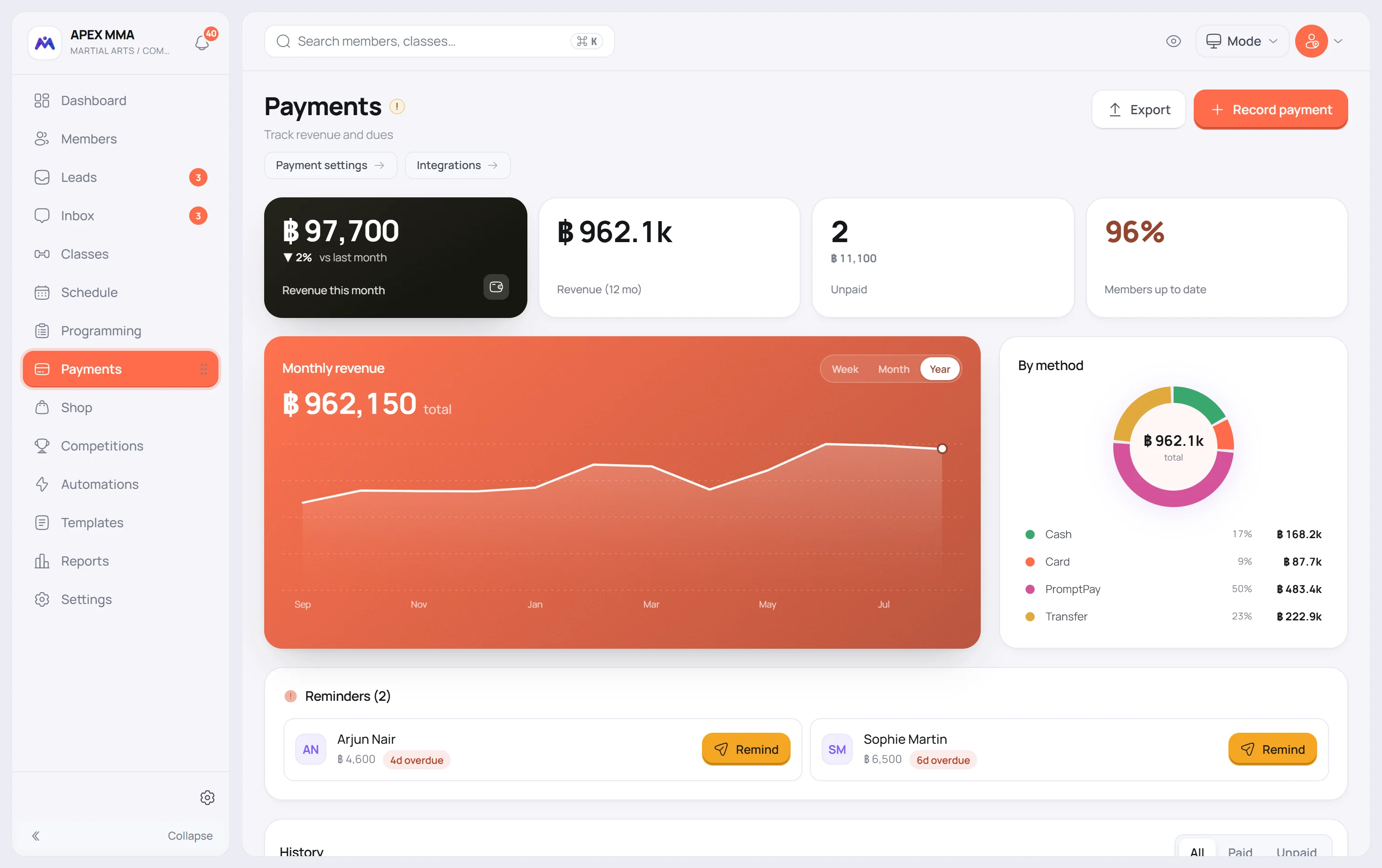
The Reminders block on the Payments page lists each member who owes something, one row per person, with the total they owe and how late it is. Collect takes the whole balance in one go, Remind lets you write a message or pick a saved one to send by email, LINE or WhatsApp, and tapping the name opens their profile straight on the Payments tab.
When more than one person is listed, Remind all asks you to confirm, then sends each of them the payment reminder. It needs Payment reminder to be switched on for email or LINE in Settings › Automatic messages.
On the profile, in the Payments tab, Remind sends the member the balance left on their plans. You can send it as often as needed, and the date of the last one is shown underneath so you do not spam. The wording changes on its own: with Stripe connected the member is invited to pay online, without it the message asks them to settle in person.
Online promo codes and gift cards
Path: Settings › Shop. Under Promo codes, create a promo code (percentage or amount off, an end date, a maximum number of uses, one use per member, one membership or all). A member types it, or a gift card code, in the Promo or gift card code field when buying a membership by card in their space.
The price is worked out on the server and shown on the payment page. A gift card is only drawn down once the payment succeeds, and the card payment never goes below the smallest amount the payment page accepts: the rest of the balance stays on the card. Codes cannot be combined with monthly payments or QR and transfer payments.
Turn on Sell gift cards online and list the amounts you offer. A member picks an amount, pays by card, and the code is emailed to them, or to the recipient they entered. The sale appears in Payments like a gift card sold at the desk.