
Draw a map of a room, turn spot choice on for a class, and members pick their bike, reformer or station when they book. A class left on Off books exactly as before.
On this page
Draw the map of a room#
Path: Settings › Spot booking › Rooms › Draw the map.
The rooms are those of Settings › General › Rooms & sites. Start from a quick layout (grid, staggered or fan), then move, number or remove spots one by one. Each spot has a type, such as Bike or Reformer, and a status: active, out of order or staff only.
The map opens full screen. On a computer or a tablet held sideways, the tools sit in a column on the left: the selected spot at the top, then Add, Landmarks, Quick layout and Background. The room stays on the right and never scrolls with the column.
Drag a type from Add onto the room: the spot lands where you let go, snapped to the grid and never on top of another spot. Tap a type instead to add it at the first free place, row by row from left to right, so the numbers read in order. Custom, at the end of the list, creates a new equipment type with its name and an icon from the whole set (search) or your own image; it joins the same list as Equipment types, and one spot of it is added.
Landmarks work the same way, and their Custom chip takes a free label such as Water or Lockers. Drag a landmark on the map to move it. Landmarks never overlap each other or the spots, and Generate moves any landmark the new layout would cover.
Use − and + to zoom, and Fit to see the whole room. Drag a spot to move it. Right-click a spot or a landmark, or long-press it on a tablet, for Edit, Duplicate, Out of order and Remove. Delete removes the selection and Esc deselects it. The selected spot opens in a panel over the room, so the tools on the left never move.
On a tablet held upright or a phone, the room fills the screen and the tools open from the tabs at the bottom: Spot, Add, Layout and More. Drag from the Add sheet onto the room with your finger.
Types are listed in Settings › Spot booking › Equipment types, where you can rename them, change the icon or add a photo that members see when they tap a spot.
You can also add a room from Settings › Spot booking › Rooms › Add room: it is created in Rooms & sites, and you can draw its map straight away.
A type can also use one of your own images as its icon on the map, with Use an image in the same panel.
Path: Settings › Spot booking › Rooms › Delete map.
To delete the map of a room, open the … menu of its row, or the … menu in the top bar of the map, then Delete map. The room stays in Settings › General › Rooms & sites, its classes book without a spot, and upcoming bookings keep their class but lose their spot: you are told how many before anything is deleted.
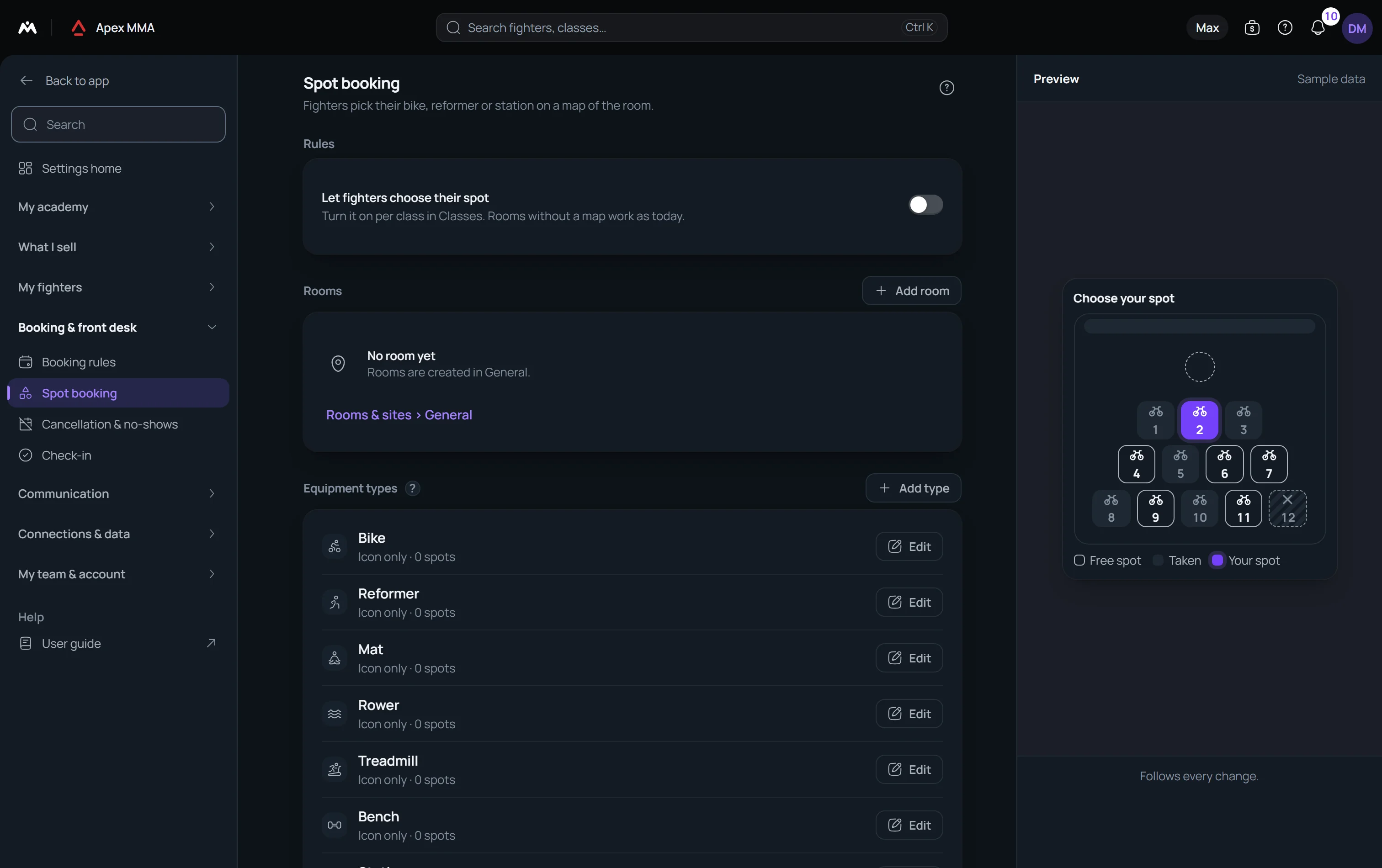
Turn it on for a class#
Path: Settings › Spot booking › Rules › Let members choose their spot.
Then open the class and set Spot choice to Off, Optional or Required. The map comes from the room of the class, so pick a room that has a map first, in the Room & spots part of the class form. Optional: members pick a spot or book any free one. Required: every booking gets a spot, and the class capacity follows the active spots of the map. The spot also appears in the booking confirmation email.
What members see#
When they book, members see the map and tap a free spot. Their usual spot is pre-selected when it is free. The spot then appears on their booking and in the confirmation and reminder messages. The public booking page shows the same map.
They can change their spot until the class starts, until the cancellation cutoff, or not at all, as you set in Rules. Taken spots show initials only if Show who is on each spot is on, your member portal shows participants and the member shares their name.
To change it, they tap Change spot on their next class or in the booking details, where their current spot is marked Current. Change class moves the booking to another class.
In the booking confirmation email, the spot is on the card and at the end of the subject, for example Booking confirmed: HIIT Blast · Tue 20 Oct · Bike 3. The class reminder carries it after the time. In your own message templates, write {spot} where you want it: a booking with no spot leaves nothing hanging, the separator before the word goes with it.
Spots given automatically
Path: Settings › Spot booking › Rules › Assign the remaining spots.
People who booked without a spot get one that many minutes before the class: their usual spot when it is free, otherwise the free spot nearest the front. Guests sit next to the person who booked them, and someone who comes off the waitlist gets a spot straight away.
Each person is told their spot: it appears in the class reminder when the reminder has not gone out yet, otherwise a short message follows, once. Turn this off with Tell members their spot in the same Rules section; it is on by default.
Path: Settings › Spot booking › Rules › Tell members their spot.
At the desk
Path: Schedule › tap a class card › Enrolled tab › Map.
The map shows who sits where and who has checked in. Tap a person to check them in or move them, tap a free spot to give it to the next person you add, and block a spot for one session from its menu. You can print the map from the same screen, and the check-in screen has the same Map view.
After Move, the free spots stand out and the others fade: pick the new spot, or press Cancel or Esc.