
Open tabs: how to start one, where it shows up, and how to cash it in or write it off.
On this page
Turn tabs on or off#
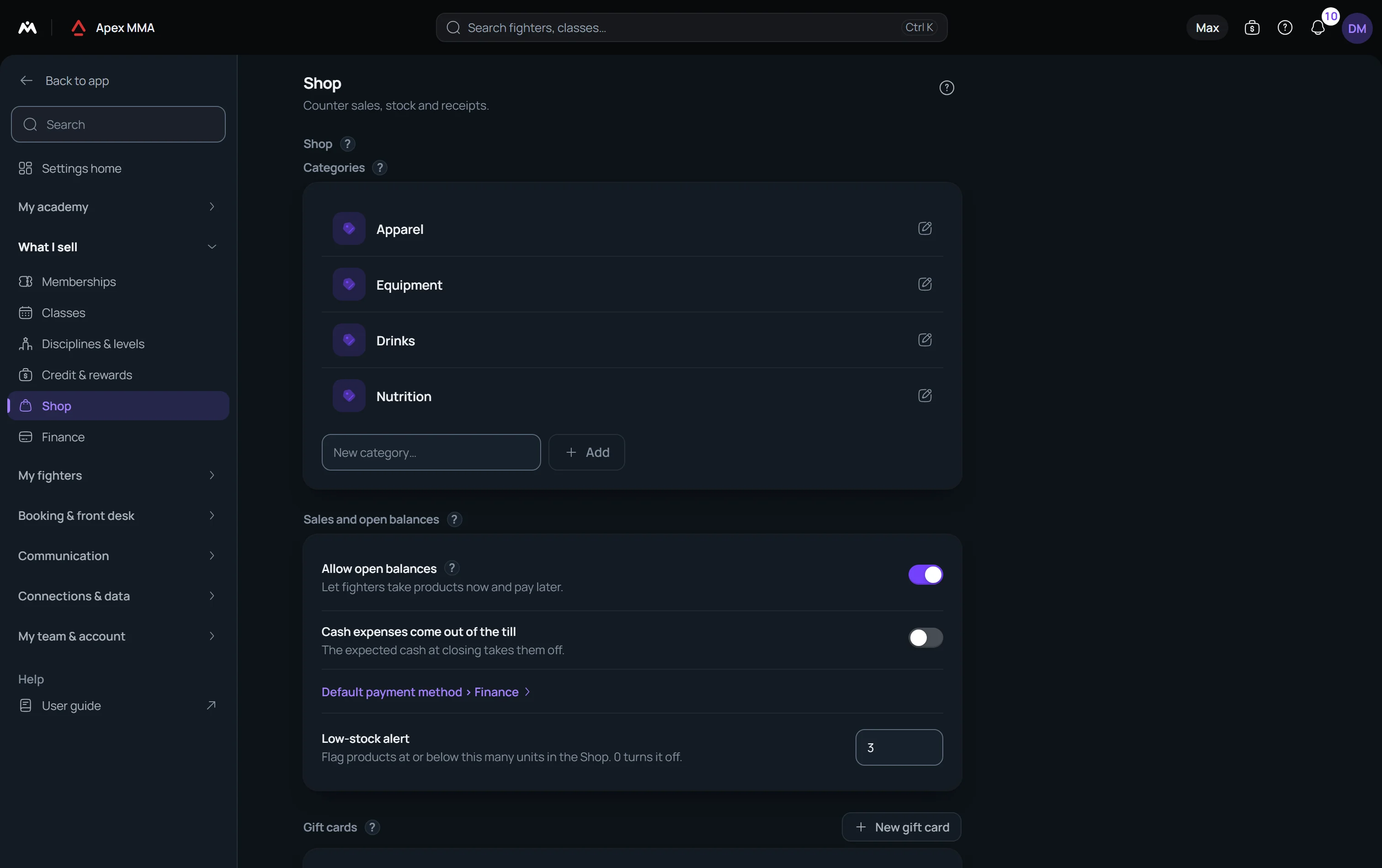
Path: Settings › Shop › Sales and open balances.
Open tabs are allowed by default. Switch off Allow open balances and the On the tab option disappears from the Till, which is also where the Add button of a member's file leads. Existing tabs are not deleted, you can still collect them.
Put a purchase on a tab#
Path: Shop › Sell › On the tab.
Starting from the member's own file is the fastest way: it opens the Till with the person already attached (Add on the Shop tab card when they already have a tab, or Sell in the member's menu). From the Till itself, tap the buyer line at the top of the ticket, pick the person, then choose the On the tab tile when you charge.
A tab only exists for a member. There is no tab for a visitor.
Where an open tab shows up#
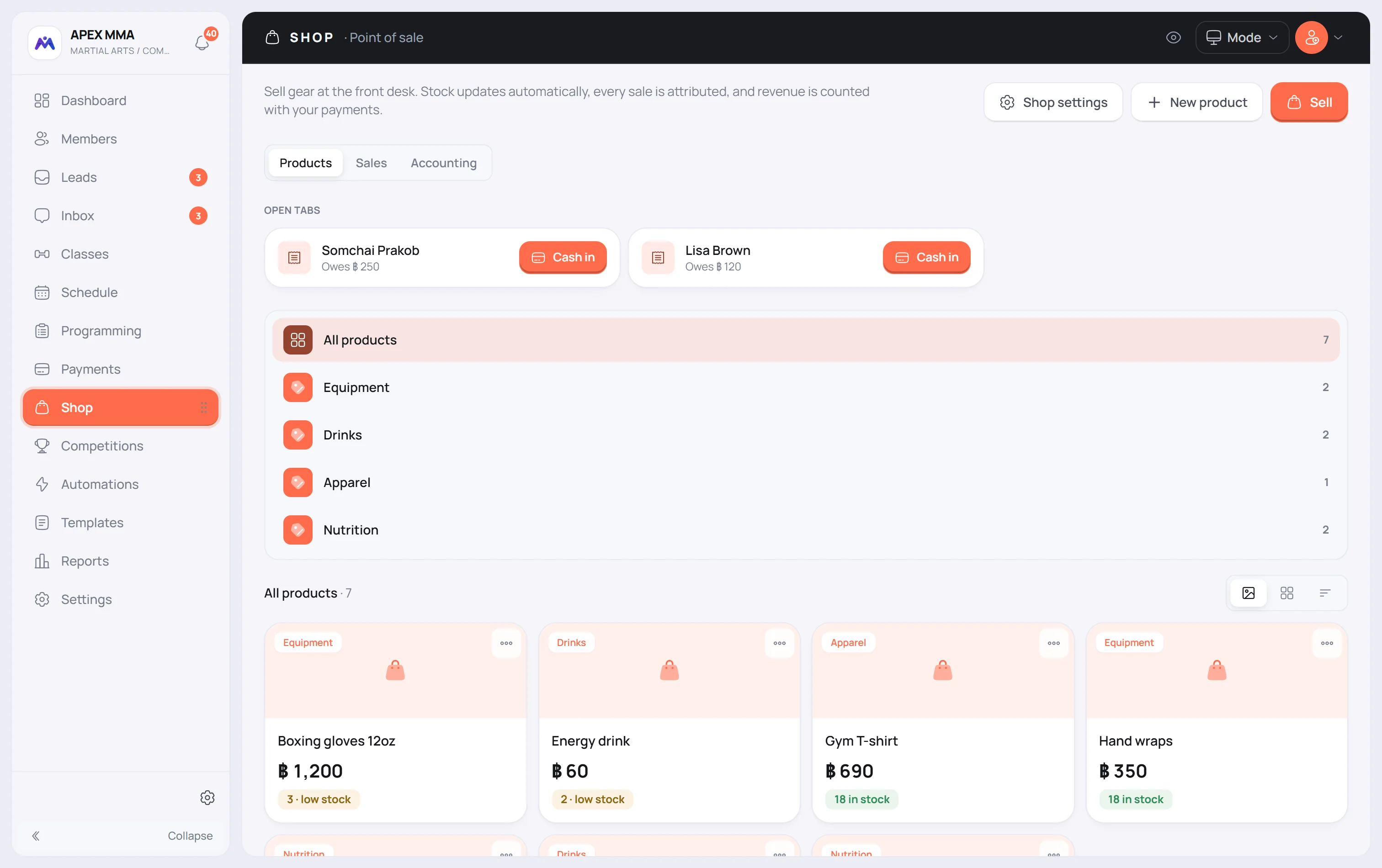
On the Shop page, an Open tabs band appears above the catalogue as soon as someone owes money: one card per member, sorted by the largest amount, with a link to their file. A cancelled tab leaves the band at once.
On the member's file, the Shop tab card lists each unpaid purchase with its amount, and the tab is part of the member's Balance. In the member space, the member sees their own tab amount, and with Stripe connected a Pay tab button.
Cash in a tab
Press Collect on the member's card. A window shows the amount due and lets you pick the payment method, starting on your default payment method. Charging the amount marks every unpaid shop purchase of that member as paid.
The Settle tab button on the member's file does the same thing without asking for a method: each line keeps the method it was recorded with.
Cancel a tab
Cancel tab is the icon-only button at the left of the footer of the same window. Use it when the tab was a mistake, or when you are writing the debt off.
When a tab becomes revenue
Money on a tab is not revenue yet. The Sales tab of the Shop page splits this clearly: Revenue counts what has been paid, Balance counts what is still owed. The Shop row in Reports follows the same rule.
So a strong week that is all on tabs shows a weak profit until people pay.