
Coaches and team accounts are two different lists. Plus the permission grid, and what the invitation email really does.
On this page
Steps
- Open Settings › Team & access.
- Click Invite in the Staff accounts section header.
- Type their email address, their name and their role.
- Click Send invitation. The email leaves right away.
Coaches and team accounts are two different lists#
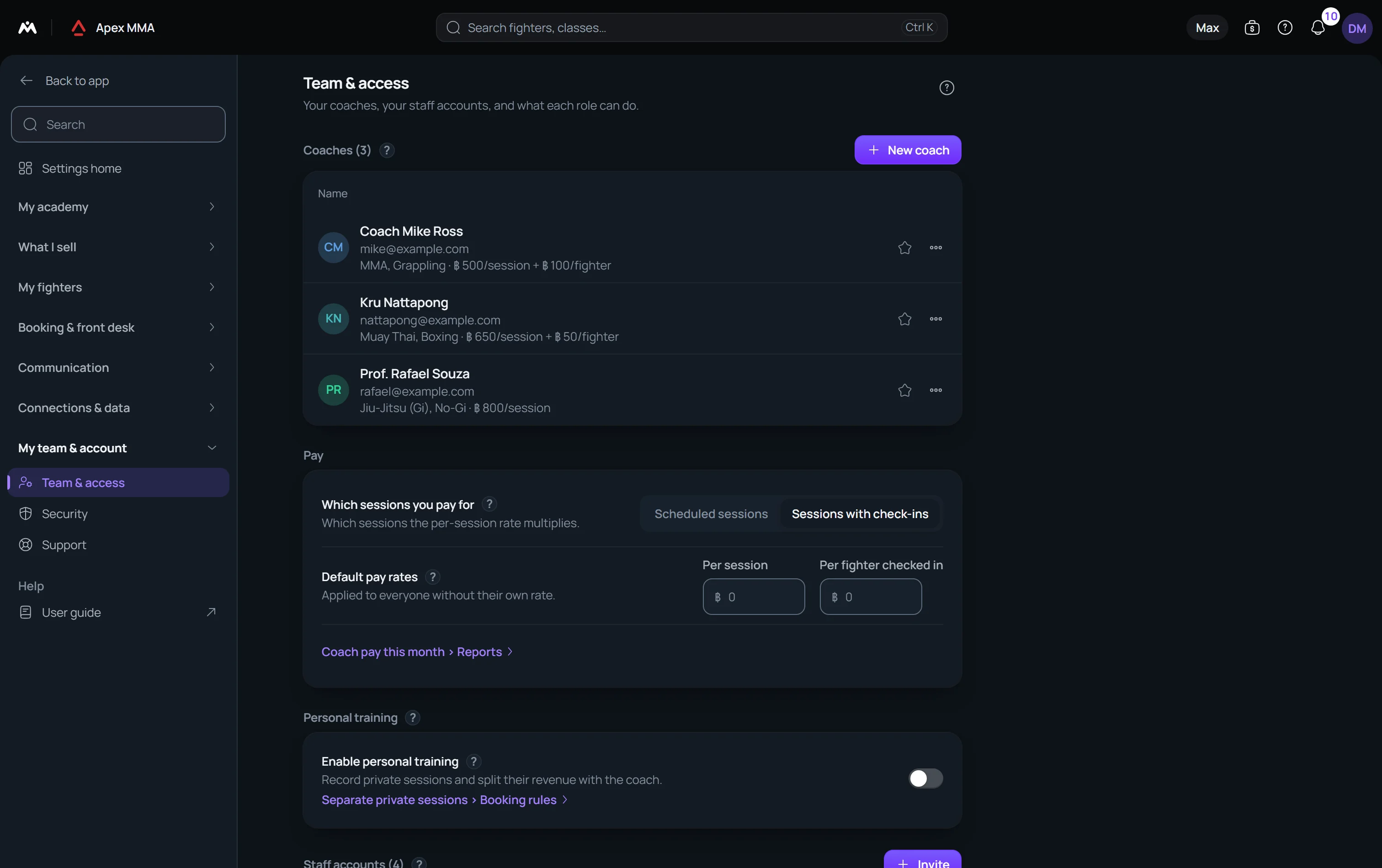
Path: Settings › Team & access.
The Coaches list at the top holds the people who teach: name, specialties, phone, email, pay rates, short bio, availability. The Staff accounts list further down holds the people who log in to the software.
They are separate on purpose. A coach card is a record about a person. It has no role and no login.
What a coach sees by default#
A coach sees their own classes and the people booked in them, and nothing else: no full list of members, no leads, no shop, no messages and no campaigns. The schedule opens on their own classes, and the app shows no trial or billing banner.
Without a language of their own, a team member opens the software in your studio's first language, never in the language of their browser. You can give them another one in the invitation, under Language for emails and the app.
What each role can do out of the box#
Owner has everything, always. Nothing can take a capability away from the owner. Admin has everything by default, and you can take capabilities away.
Coach can send messages, and nothing else from the managed list.
Front desk can manage members, manage memberships, record payments, SEE member balances and revenue, and send messages.
On top of that, everybody keeps the everyday actions that are not on the list: booking a member into a class, marking attendance, checking someone in, searching, writing notes.
The permission grid
Eleven capabilities, four columns. Tick a box to grant, untick to take away. The Owner column is a ticked box that you cannot change.
Manage members: add, edit and archive members. Manage memberships: add, renew, freeze or cancel plans. Record payments: take payments at the desk, without revealing amounts. View member balances: see what each member owes and has paid, at the desk and on their profile. View revenue & reports: see gym revenue, totals, reports and payroll (it includes member balances). Manage schedule: create and edit classes, cancel sessions. Send messages: LINE, email and templates. Refund & void: refund, cancel or correct a recorded payment or sale. Delete records: delete members (they go to the trash), unpaid charges, sold memberships, notes and files. Import & export data: import members, undo an import, download member and attendance files. Gym settings: gym setup, currency, team and access.
Removing a team member
The ⋯ menu on a line of the Staff accounts list offers Edit, Resend invitation, Change role and Remove. Remove asks you to confirm, then ends that person's access to the gym. The entry lands in the trash, under Team member, and stays recoverable there for the retention period. Restoring it brings back their role too. The account holder, who created the gym and holds the subscription, cannot be removed from the team.
How many staff accounts your plan includes
The free plan includes three accounts: yours and two more, which is enough to put someone else on the front desk. Paid plans lift the limit entirely. Once you reach it, clicking Invite opens the upgrade window instead of the invitation form, and the same limit is checked on the server.
Hide the amounts on your screen
The coins button in the top bar, which is also in the account menu, is called Hide amounts. Pressing it hides every money figure for your account, which helps at a desk that a client can see. The button then reads Show amounts.
The button only appears for people who are allowed to see amounts. The owner and the admins start with amounts visible. A coach or front desk account may open with them hidden: on a member profile, press the same coins button, among the buttons at the top of the profile.