
Tracks, one workout a day, and the difference between written and published.
On this page
Steps
- Open Programming.
- Pick the track chip.
- Move to the right week with the arrows.
- Tap the day.
- Write the blocks.
- Choose Publish now or Scheduled, then press Publish, Schedule workout or Save as draft.
Attach a class to a track#
Path: Programming › pick the track chip › Track settings. The panel lists your classes: tap one that says Add to attach it, or one that says Following to detach it. The class form has the same choice, in the Programming track field under More options.
Attaching is a one-off setting. After that, the class shows whatever is written for that track, day after day.
Copy to another day#
A strength cycle repeats. Copy to another day, from the menu on a day cell, takes the workout to another date and, if you want, to another track.
If the target day already has a workout, the first attempt is refused and the software names what is there. Replacing is a second, deliberate step, and what was there goes to the Trash.
Where the workout shows up#
On the staff side, open a session from the Schedule and go to the Program tab. The workout for that class on that date is shown there, read only.
On the member side, a published workout appears for every class on that track that day.
Archive or delete a track
Path: Programming › pick the track chip › Track settings. Tick Archive this track to put it aside without losing it. Its workouts stay written and readable, the chip moves to the end of the row, and a Bring it back button on the page puts it back.
Delete, in the same panel, sends the track and all of its workouts to the Trash, where they can still be restored.
Troubleshooting
A track is a thread, not a class
A track is one continuous thread of programming: CrossFit, Hyrox, Weightlifting, Fundamentals. You attach each class to a track once, and from then on you write for the track, never for the class.
That is the whole point. Five classes of the same style on the same day share one track, so you write the session once and all five show it. If you had to write per class you would be copying the same workout five times, and the fifth would eventually drift from the first.
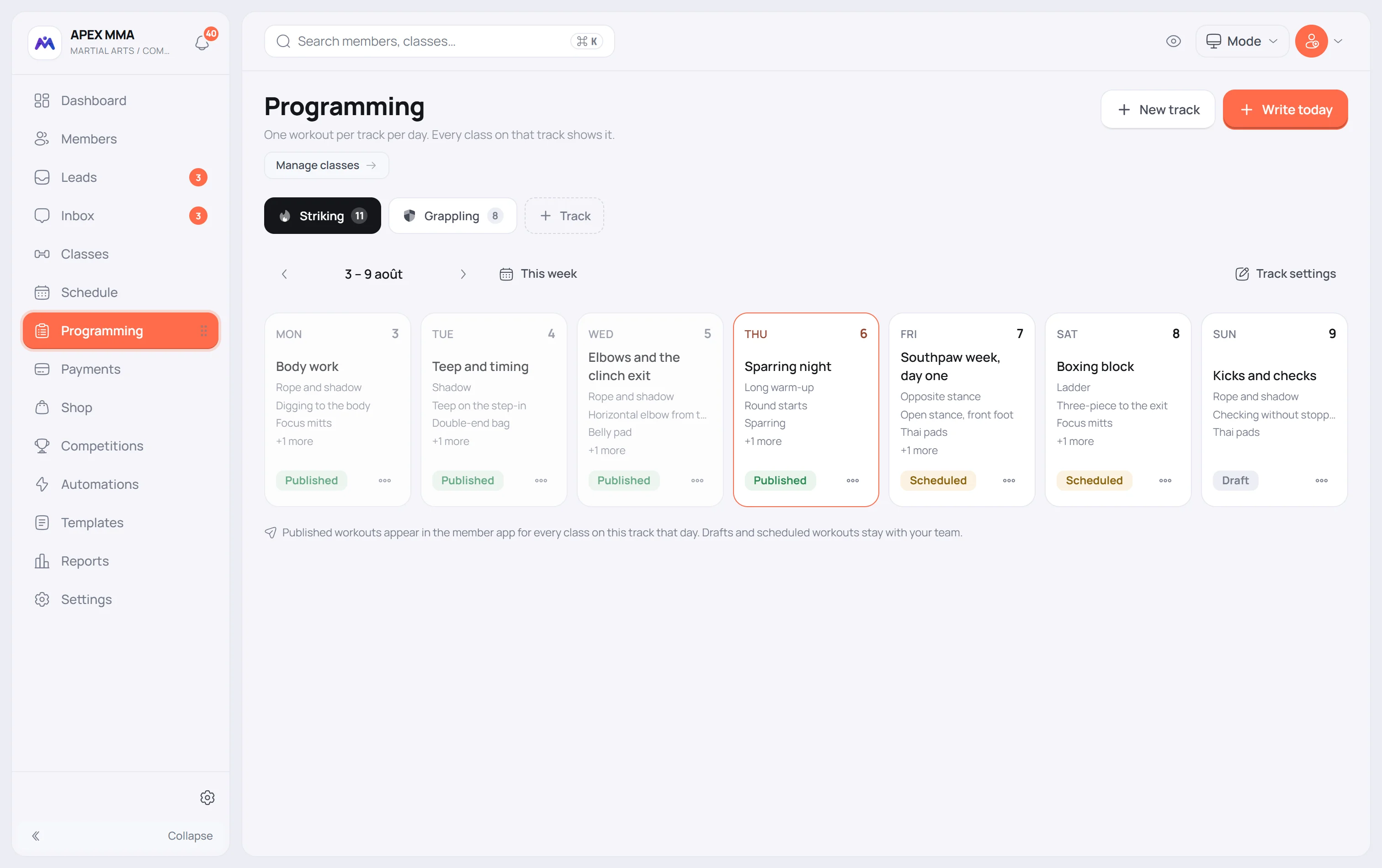
Written is not published
A workout becomes a draft when you press Save as draft. Drafts are yours: they sit in the calendar, you can edit them for as long as you like, and no member sees them.
Publishing is the separate act that makes it visible. In the editor, Visibility starts on Publish now, so the Publish button shows the workout to members at once. Choose Scheduled to pick a date and a time: the workout then publishes itself, and the button reads Schedule workout. That is how you write a whole week on Sunday and let each day open on its own morning, instead of handing your members the week ahead.
The status pill on each day cell tells you which is which without opening anything.
From the menu on a day cell, Publish now and Back to draft change it later.