
The sections of a profile, who decides the status, how a promotion is recorded, and the difference between archiving and deleting.
On this page
Steps
- Open the profile.
- Click the status pill under the name.
- Pick a status, or pick Automatic to hand it back to the calculation.
The sections of a profile#
Path: Members › tap a row.
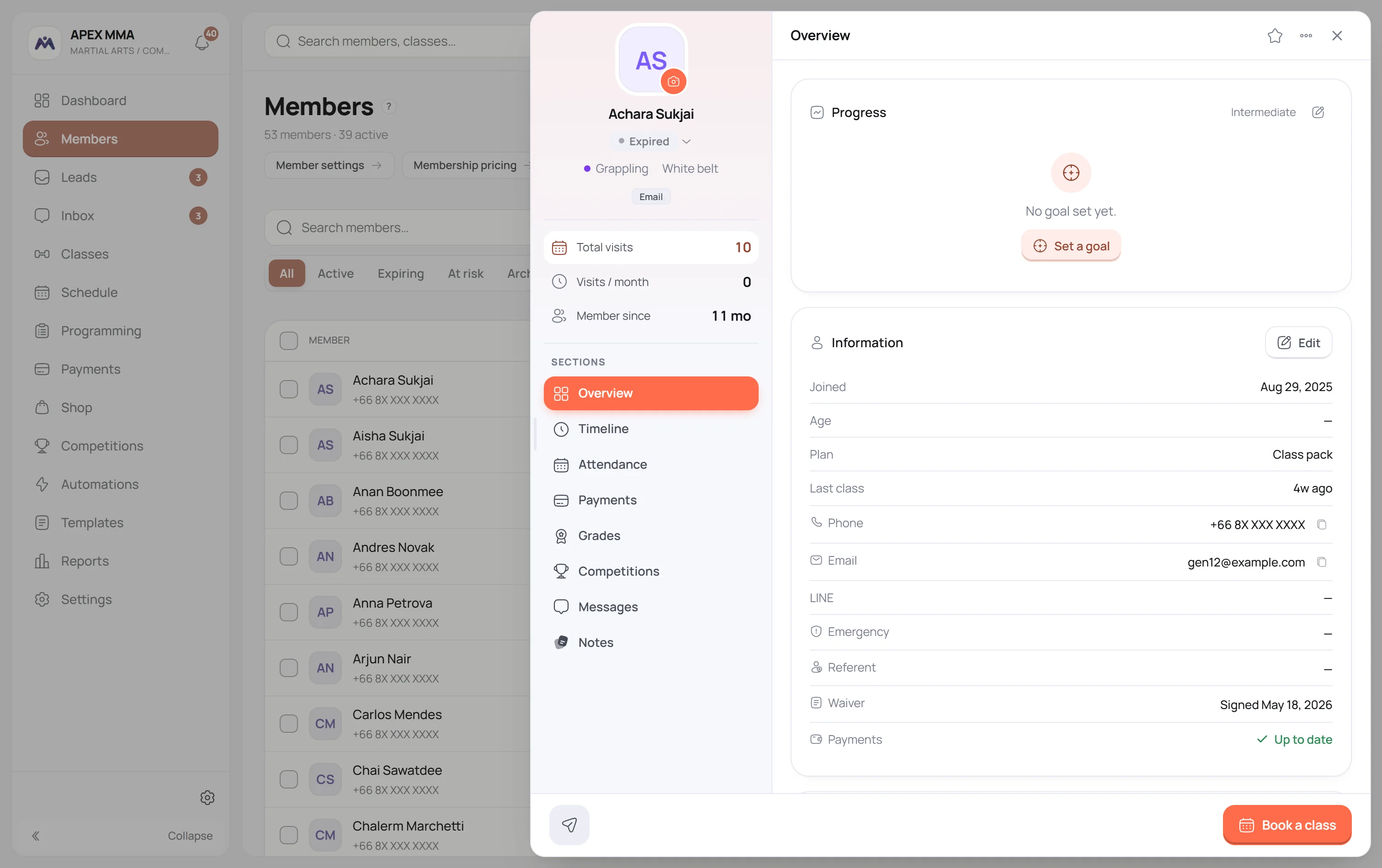
A profile holds up to eight sections: Overview, Bookings, Payments, Timeline, Messages, Notes, and Grades and Competitions under More. Bookings lists upcoming, past and cancelled classes, and lets you move or cancel one, log a visit without a class, or set up recurring private sessions. A member's balance, a possible duplicate payment, a refund with its reason and a membership transfer are all on the profile.
Some are missing on purpose. Payments does not appear for a role without the Record payments permission. Grades and Competitions follow what your gym has switched on. Messages follows your plan.
Timeline is the one worth knowing about. It rebuilds the history of the member on one page, day by day: payments and refunds, memberships and freezes, classes attended, visits without a session and no-shows, promotions, the signed waiver, credit and points, messages and email campaigns sent, and staff notes. Bookings still to come are not in it: they are in the Coming up card of Overview. The chips above it, such as Visits, Money and Notes, filter it.
Overview holds the cards you use most: Memberships, Coming up, Contact details and Documents.
The health note on a profile, for your team only#
Path: Members › a member › Edit.
Health or injury note (optional) is one field of a few lines, 400 characters at most. Use it for what a coach should know before the class, such as a knee that is recovering. It is on the full New member form too.
Only your team sees it, and it is never shown in the member space. It leaves the software in one place only: the roster email a coach receives before a class, when Include health notes is on in Settings › Team alerts.
Recording a promotion#
Path: Members › a member › Grades › Promote, on the discipline card.
The Grades section shows one card per discipline the member practises. Only disciplines graded with belts or colours offer a Promote button. A discipline graded by level shows the current level read only, and that level is changed from the member form.
The promotion form suggests the next grade in the ladder and takes an optional note, for instance the result of the grading.
- Open the profile, then Grades.
- On the right discipline card, tap Promote.
- Check the grade suggested, adjust it if needed.
- Add a note, then Record promotion.
Badges
Path: Settings › Member files › Badges.
A badge can be automatic, computed from the classes attended, the weekly streak, the months since joining or the invited friends who buy a plan. Or it can be manual, and then you award it yourself with Award badge on the profile.
On the profile, badges are one line in the Contact details card. It reads None when nothing is earned, and it is absent when your studio has defined no badge at all.
Troubleshooting
What a coach does not see
A coach sees no Payments section and no balance, and private contact details are hidden from them: phone, email, emergency contact and guardian. The Payments section needs the Record payments permission, balances need View member balances, and the contact details need Manage members. You grant them in Settings › Team & access.
Recording a payment and seeing the amounts are two separate permissions, so you can let someone take money at the desk without showing them the revenue.
The eligibility bars are an indicator, not a rule
On the main discipline, two bars show time in the current grade against six months, and classes attended against forty.
Those two numbers are fixed. They are not a setting, and changing your disciplines does not change them. The classes counter adds up every class the member attended, all disciplines together, not only the one on the card.
Nothing is blocked. You can promote a member whose bars are both empty.
Archiving is not deleting
Archiving keeps everything: the history, the payments, the memberships, the files. It only takes the member out of the lists, and it is undone in one click from the Archived tab. It also frees a slot against the member cap of your plan.
Deleting is the other thing. The record leaves the software and takes its payments, its memberships, its bookings and its grade history with it. Only the owner and the admins see that option.
- Open the profile.
- Open the menu with three dots at the top right.
- Pick Archive, or Delete member.