
Create products, price them with a cost, use variations for sizes, and decide which items the software counts down.
On this page
Create a product#
Path: Shop › New product (top right).
Only the name is required, everything else can wait. You can add a photo, which is shrunk before it is saved, so a phone photo is fine. A product with no photo takes the colour of its category instead, which is the fastest way to make a catalogue readable without photographing everything.
Barcode / reference is optional. Whatever a barcode scanner types into the search field of the Till finds the product.
Look at a product, then edit it#
Path: Shop › Products › a product.
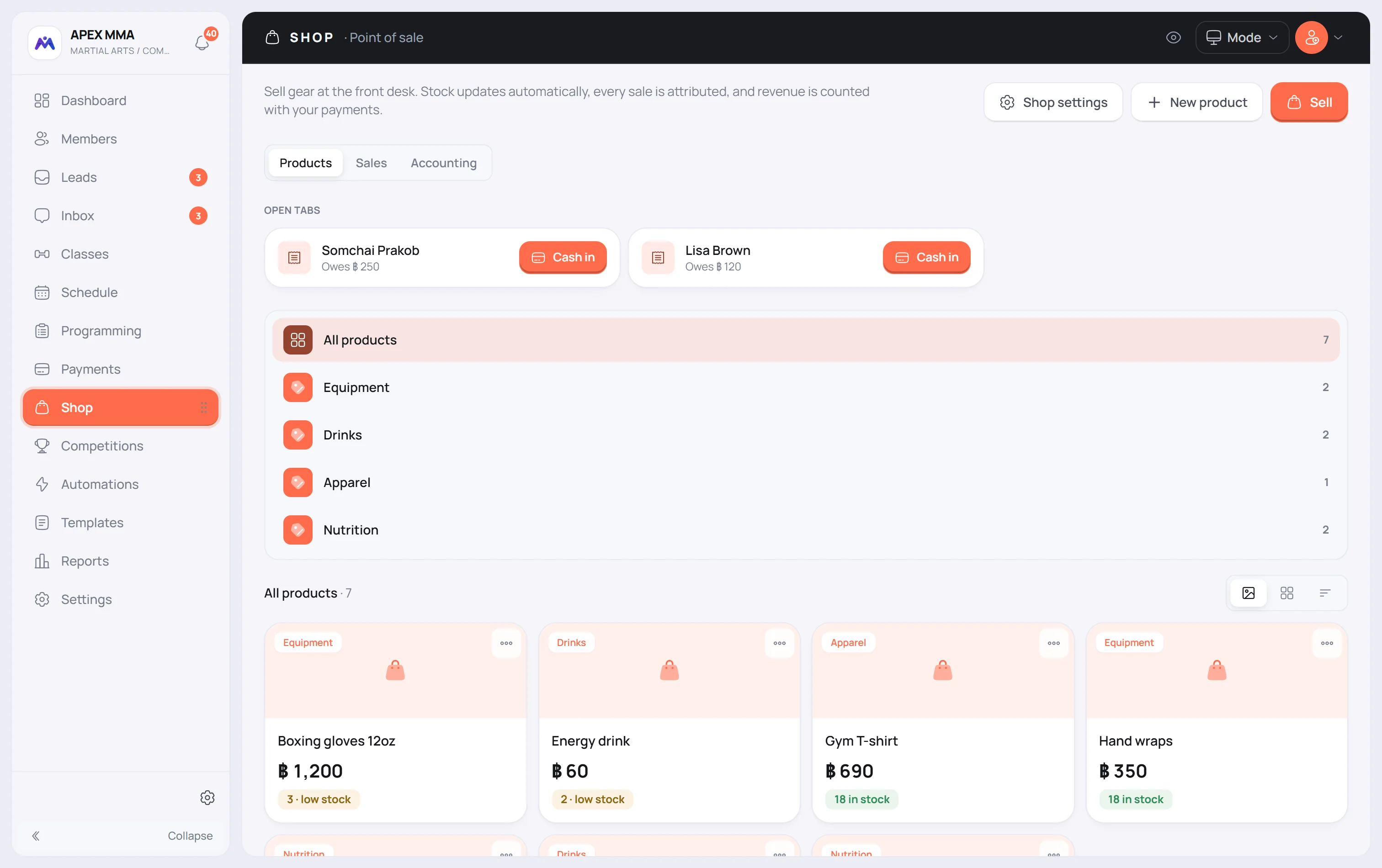
Tapping a product opens its sheet, which is for reading: the price, the cost, the margin, the stock, how many were sold in the last 7 days and the date of the last sale. Edit, at the bottom, opens the form. The “…” menu of the sheet, and the one on each row, hold Sell, Restock and Delete (the row menu also has Edit).
The catalogue is a list. Once you have 20 products, a List and Grid switch appears.
Price, cost and margin#
Price is what the customer pays. Cost is what you paid your supplier for one unit. When both are filled, the drawer shows the margin in money and in percent, right under the two fields.
Categories and their look
Path: Shop › New product › Category. Pick a category from the list, or choose New category…, type a name and press Add. The new category is created and selected in one go.
The icon or imported image and the colour of a category are set once for the whole category, in Settings › Shop › Categories, never from a product: under a selected category the product form says so and links there. That look is what shows on every product of that category that has no photo of its own.
Variations for sizes and colours
Use variations when the same item comes in several sizes or colours. Each variation has its own name, its own stock, and optionally its own price. Leave the price of a variation blank and it sells at the product price.
Variations have no cost field. They are valued at the cost of the parent product.
Track stock, or sell without counting
For a product without variations, a Track stock box decides everything. Unticked, the product is unlimited: it never runs out, never shows a stock badge, and never appears in the low stock alert. That is the right choice for things you do not want to count, like water bought by the crate.
Ticked, you type how many units you hold. Every sale takes units off, every restock puts them back.
Out of stock, and the low stock warning
Products carry a stock badge: green in stock, amber low stock, red out of stock. Unlimited products carry no badge. In the Till, an out of stock product is dimmed and cannot be tapped.
On the Products tab, a Low stock card lists every product and variation at or below your low stock threshold, set in Settings › Shop (Low-stock alert, 3 by default). Tapping one opens its form so you can correct the quantity on the spot, and Show them filters the list to those products.
Take a product off sale, or delete it
Untick Available for sale to stop selling an item without losing it. It stays in your catalogue view but drops out of the sale screen.
To remove it for good, use the three dots menu on the product card and choose Delete. A deleted product goes to the Trash, restorable for as long as your retention setting allows. Sales already recorded are never touched: deleting a product does not erase the revenue it made.